<?xml version="1.0" encoding="utf-8"?><feed xmlns="http://www.w3.org/2005/Atom" ><generator uri="https://jekyllrb.com/" version="4.2.2">Jekyll</generator><link href="https://www.gaelanlloyd.com/feed.xml" rel="self" type="application/atom+xml" /><link href="https://www.gaelanlloyd.com/" rel="alternate" type="text/html" /><updated>2026-03-05T05:18:47+00:00</updated><id>https://www.gaelanlloyd.com/feed.xml</id><title type="html">Gaelan Lloyd</title><subtitle>An engineer&apos;s chronicle of real-world tech issues, opinionated industry insights, and detailed instructions on fixing things that shouldn’t be broken.</subtitle><entry><title type="html">How to create an IoT VLAN with OPNsense and TP-Link Omada (with IPv6 Prefix Delegation)</title><link href="https://www.gaelanlloyd.com/blog/iot-vlan-opnsense-omada-ipv6/" rel="alternate" type="text/html" title="How to create an IoT VLAN with OPNsense and TP-Link Omada (with IPv6 Prefix Delegation)" /><published>2026-03-04T00:00:00+00:00</published><updated>2026-03-04T00:00:00+00:00</updated><id>https://www.gaelanlloyd.com/blog/iot-vlan-opnsense-omada-ipv6</id><content type="html" xml:base="https://www.gaelanlloyd.com/blog/iot-vlan-opnsense-omada-ipv6/"><![CDATA[<p>In this post I’ll be talking about the journey I went on to strengthen my home network by adding an isolated VLAN for IoT devices and properly assigning IPv6 addresses for all devices on my network.</p>

<p>This guide will cover: IPv6 prefix delegation; Creating VLAN interfaces in OPNsense; DHCP configuration; Router advertisements; Firewall isolation rules; Managed switch VLAN tagging; and Omada VLAN Wi-Fi configuration.</p>

<h2>Table of contents</h2>

<ol class="toc">

    <li>
        <a href="#intro">Introduction</a>

        
        <ol class="toc">
          
            <li>
              <a href="#intro-hardware-used">Hardware used</a>
            </li>
          
            <li>
              <a href="#intro-why-vlan-iot-devices">Why you should put IoT devices on a separate VLAN</a>
            </li>
          
            <li>
              <a href="#intro-before">Before: The original network layout</a>
            </li>
          
            <li>
              <a href="#intro-after">Afterwards: The improved network layout</a>
            </li>
          
        </ol>
      

    </li>

    <li>
        <a href="#ipv6-prefix-delegation">Get your ISP to provision you a /60 or /56 block of IPv6 addresses</a>

        
        <ol class="toc">
          
            <li>
              <a href="#ipv6-prefix-delegation-request-isp-change">Requesting the change from the ISP</a>
            </li>
          
            <li>
              <a href="#ipv6-prefix-delegation-validating-isp-settings">Validating the prefix your ISP is issuing</a>
            </li>
          
        </ol>
      

    </li>

    <li>
        <a href="#opnsense-create-vlan">OPNsense VLAN setup</a>

        
        <ol class="toc">
          
            <li>
              <a href="#create-iot-vlan">Create the IoT VLAN in OPNsense</a>
            </li>
          
            <li>
              <a href="#add-network-interface">Assign the VLAN interface</a>
            </li>
          
            <li>
              <a href="#assign-dhcp-ranges">Configure DHCP for the VLAN</a>
            </li>
          
            <li>
              <a href="#enable-router-advertisements">Enable IPv6 router advertisements</a>
            </li>
          
            <li>
              <a href="#opnsense-vlan-firewall-rules">Create firewall rules</a>
            </li>
          
        </ol>
      

    </li>

    <li>
        <a href="#managed-switch-configure-vlan">Configure VLANs on your managed switch</a>


    </li>

    <li>
        <a href="#omada-create-vlan-wifi">Configure VLANs in TP-Link Omada</a>


    </li>

    <li>
        <a href="#troubleshooting">Common problems/Troubleshooting</a>

        
        <ol class="toc">
          
            <li>
              <a href="#troubleshooting-ipv6-prefix-id-out-of-range">Error: 'IPv6 prefix ID is out of range'</a>
            </li>
          
            <li>
              <a href="#troubleshooting-vlan-wifi-incorrect-addresses">VLAN Wi-Fi devices are not receiving IP addresses</a>
            </li>
          
            <li>
              <a href="#troubleshooting-iot-devices-cant-see-others">IoT devices cannot see each other</a>
            </li>
          
        </ol>
      

    </li>

</ol>

<h2 id="introduction"><a name="intro" class="anchor"></a>Introduction</h2>

<p>I decided to tackle a project I had been putting off for a while: <em>Building out a separate IoT VLAN for my home network.</em></p>

<p>Prior to this, I had been using Omada’s guest network for IoT devices in my home. But doing so caused me some headaches:</p>

<ul>
  <li>It prevented the devices on that network from talking to each other.</li>
  <li>It was cluttered: Both visitor devices and IoT devices were part of the same WLAN.</li>
  <li>It kept me from having full visibility into the network’s firewall rules and hid activity for those devices on my network.</li>
</ul>

<p>The Omada guest network feature is great, and I want to keep using it for when I have visitors over. I want guests to have access to our Wi-Fi, but not to our home network. And I don’t want anything running on their devices to get to see anything on our trusted network. <em>No funny business!</em></p>

<p>Instead of using the Omada guest network for IoT devices, creating a dedicated VLAN provides better firewall control, device visibility, and network segmentation.</p>

<p>On a personal note, prior to this I really didn’t know much about IPv6. Frankly, I just disabled it more often than not, because I didn’t want to deal with it. It turns out that giving each device on your network a truly-global address unlocks a lot of simplicity and allows services like ZeroTier, Syncthing, and other direct-connection services to work quickly without dealing with weird legacy workarounds like IPv4 NAT.</p>

<p>Turns out setting this up helped me learn a bunch about IPv6, too. It was a long and arduous project but I’m glad I hunkered down and tackled it!</p>

<h3 id="hardware-used"><a name="intro-hardware-used" class="anchor"></a>Hardware used</h3>

<p>In my home network, I have the following services and devices:</p>

<ul>
  <li>Xfinity/Comcast ISP (Residential cable)</li>
  <li>Motorola Nighthawk CM2000 cable modem</li>
  <li>OPNsense firewall/router running on an HP T730 thin client with an Intel I340-T4 NIC</li>
  <li>MikroTik CSS318-16G-2S+IN managed switch</li>
  <li>TP-Link Omada Wi-Fi APs (2x EAP610-v3, 1x EAP650-v1)</li>
  <li>And a bunch of devices all connected in via ethernet and over Wi-Fi</li>
</ul>

<h3 id="why-you-should-put-iot-devices-on-a-separate-vlan"><a name="intro-why-vlan-iot-devices" class="anchor"></a>Why you should put IoT devices on a separate VLAN</h3>

<p>I’m fairly security-minded and want to help protect the devices on my network. Smart-home devices can offer useful functionality, but I don’t believe should have full access to my trusted home LAN. How many times have we heard news stories about botnets and other things running amok in things like Smart Light Bulbs?</p>

<p>IoT devices should be isolated from your trusted home network because many of them:</p>

<ul>
  <li>Receive infrequent security updates and/or run outdated firmware.</li>
  <li>Do naughty things, like scan your network and phone home all sorts of telemetry.</li>
  <li>Have glaring issues like using hardcoded admin credentials that can eventually be discovered and exploited.</li>
</ul>

<p>Isolating IoT devices lets you use them for their convenience while preventing them from accessing your trusted network. That limits the damage blast radius in the event they’re compromised.</p>

<h3 id="before-the-original-network-layout"><a name="intro-before" class="anchor"></a>Before: The original network layout</h3>

<p>Here’s the original network layout before I started.</p>

<ul>
  <li>For simplicity’s sake, I’m only illustrating the Wi-Fi parts of the network. In reality, there’s a bunch of hard-wired devices connected up to the network.</li>
  <li>Network diagram icons courtesy of <a href="https://github.com/cryptofuture/vrt-sheet-for-dia">vrt-sheet-for-dia</a> on GitHub, with a little of my own zhuzhing up.</li>
</ul>

<p><img src="/images/posts/2026-03-04/opnsense-iot-vlan-network-diagram-before-vlan.webp" alt="A diagram showing a home network and two wifi networks. IoT devices are connected to the guest network." class="has-border spacing-4 p-4" width="100%" style="max-width: 100%; height: auto; " /></p>

<p>As you can see, everything non-trusted was just all tossed onto the Omada guest WLAN. There wasn’t any way to segment the devices in any meaningful way… it was either an “Fully trusted” or “Guest only” setup.</p>

<h3 id="afterwards-the-improved-network-layout"><a name="intro-after" class="anchor"></a>Afterwards: The improved network layout</h3>

<p><img src="/images/posts/2026-03-04/home-network-opnsense-iot-vlan-network-diagram.webp" alt="A diagram showing a home network and three wifi networks. IoT devices are now connected to the new IoT-specific network which has its own VLAN." class="has-border spacing-4 p-4" width="100%" style="max-width: 100%; height: auto; " /></p>

<p>In the improved network layout:</p>

<ul>
  <li>IoT devices are now on their own VLAN’d WLAN, isolated from the home network. They can now see each other.</li>
  <li>Physical network devices that are IoT related, or that I otherwise felt should be isolated (printers, etc.),are also tagged on the same VLAN to keep them isolated from the trusted network.</li>
</ul>

<table>
  <thead>
    <tr>
      <th>Network</th>
      <th>VLAN</th>
      <th>Purpose</th>
    </tr>
  </thead>
  <tbody>
    <tr>
      <td>Trusted network</td>
      <td>1</td>
      <td>Personal computers, phones, and tablets</td>
    </tr>
    <tr>
      <td>IoT network</td>
      <td>10</td>
      <td>Smart-home devices, Ring home security devices, etc.</td>
    </tr>
    <tr>
      <td>Guest Wi-Fi</td>
      <td>n/a (Omada controlled)</td>
      <td>Visitor devices</td>
    </tr>
  </tbody>
</table>

<h2 id="get-your-isp-to-provision-you-a-60-or-56-block-of-ipv6-addresses"><a name="ipv6-prefix-delegation" class="anchor"></a>Get your ISP to provision you a /60 or /56 block of IPv6 addresses</h2>

<p>As I started going through the process to enable VLANs in OPNsense, you’ll need to assign separate IPv6 address blocks for each VLAN. But this isn’t something you have full control over… these addresses aren’t something you can create yourself. They come from your ISP.</p>

<p>Your ISP probably delegates you a single <code class="language-plaintext highlighter-rouge">/64</code> block of IPv6 addresses, because (a) it’s easy for them, and (b) most residential customers won’t need anything different as they’ll just have everything on one network anyway.</p>

<p>Your ISP may listen for and honor requests to issue different prefixes. Unfortunately for me, this wasn’t the case. No matter what I tried, I was only ever issued a single <code class="language-plaintext highlighter-rouge">/64</code> network.</p>

<p>If you don’t have the <code class="language-plaintext highlighter-rouge">/60</code> or <code class="language-plaintext highlighter-rouge">/56</code> prefix delegation, you’ll get an error in OPNsense at the point where you enable the VLAN interface’s IPv6 Identity Association. You won’t be able to assign a <code class="language-plaintext highlighter-rouge">Prefix ID</code> and will get the error <code class="language-plaintext highlighter-rouge">You specified an IPv6 prefix ID that is out of range.</code></p>

<h3 id="requesting-the-change-from-the-isp"><a name="ipv6-prefix-delegation-request-isp-change" class="anchor"></a>Requesting the change from the ISP</h3>

<p>Since this was only something my ISP could change, I had to work with them to request the change. This ended up taking the most time and being the most frustrating part of my journey. Working with Xfinity/Comcast’s Tier-1 support proved to be a challenge because they aren’t trained to help with IPv6 prefix delegation. Escalation paths with their support team are also tricky. I was told several times by support reps that, “The matter was being worked on and that I’d hear back from the team in 3-4 hours.” But after a day went by I had to follow up with support again, starting all over in the explanation each time. I had to repeat that cycle for several days before I got a ticket number for my request.</p>

<p>In total, it took about a dozen calls to Xfinity support over the course of one week to get this changed. Eventually, they did provision me a <code class="language-plaintext highlighter-rouge">/60</code>, and I was up and running!</p>

<h3 id="validating-the-prefix-your-isp-is-issuing"><a name="ipv6-prefix-delegation-validating-isp-settings" class="anchor"></a>Validating the prefix your ISP is issuing</h3>

<p>To validate the IPv6 prefix you’re receiving, go to OPNsense and navigate to <code class="language-plaintext highlighter-rouge">System &gt; Log Files &gt; General</code>. Search for keyword <code class="language-plaintext highlighter-rouge">prefix</code> under log level <code class="language-plaintext highlighter-rouge">Notice</code>. Look at the most recent log entries and look at the last digits to see what network prefix you’re being issued. You want to see either <code class="language-plaintext highlighter-rouge">/60</code> or <code class="language-plaintext highlighter-rouge">/56</code>.</p>

<div class="language-text highlighter-rouge"><div class="highlight"><pre class="highlight"><code>dhcp6c_script: REQUEST on igb0 prefix now 2001:db8:1234:5670::/56    # Good
dhcp6c_script: REQUEST on igb0 prefix now 2001:db8:1234:5670::/60    # Good
dhcp6c_script: REQUEST on igb0 prefix now 2001:db8:1234:5670::/64    # Not good
</code></pre></div></div>

<p>A <code class="language-plaintext highlighter-rouge">/56</code> is good, too! That means you’re being issued 256 different network groups. I requested a <code class="language-plaintext highlighter-rouge">/60</code> to be more conservative, as the 16 different networks provided by the <code class="language-plaintext highlighter-rouge">/60</code> should be more than sufficient for my needs. I also wanted to be conservative with my request to Xfinity in case they pushed back on the larger allocation.</p>

<h2 id="opnsense-vlan-setup"><a name="opnsense-create-vlan" class="anchor"></a>OPNsense VLAN setup</h2>

<p>This section walks through the complete process of configuring a VLAN in OPNsense. We’ll create the VLAN interface, assign IPv4 and IPv6 networks, enable DHCP, and configure router advertisements so devices can obtain IPv6 addresses.</p>

<p>The steps below assume you already have:</p>

<ul>
  <li>A managed switch capable of VLAN tagging</li>
  <li>Wi-Fi access points that support VLANs</li>
  <li>An IPv6 prefix delegation from your ISP (see above)</li>
</ul>

<p>Once your ISP is providing you a <code class="language-plaintext highlighter-rouge">/56</code> or <code class="language-plaintext highlighter-rouge">/60</code>, you can continue actually setting up the VLANs on your network.</p>

<p>We’ll start by building that out in OPNsense, then roll out the VLAN elsewhere on the network.</p>

<h3 id="create-the-iot-vlan-in-opnsense"><a name="create-iot-vlan" class="anchor"></a>Create the IoT VLAN in OPNsense</h3>

<p>Within OPNsense, navigate to <code class="language-plaintext highlighter-rouge">Interfaces &gt; Devices &gt; VLAN</code>.</p>

<ul>
  <li>Parent interface: <code class="language-plaintext highlighter-rouge">igb1 (LAN)</code>
    <ul>
      <li>(Or whatever your LAN interface is)</li>
    </ul>
  </li>
  <li>VLAN Tag: <code class="language-plaintext highlighter-rouge">10</code>
    <ul>
      <li>(I used <code class="language-plaintext highlighter-rouge">10</code> here, but you can use something different if you’d like. Just be sure you keep this value consistent with the steps later on in this guide.)</li>
    </ul>
  </li>
</ul>

<p>Add the new VLAN interfaces and enable them.</p>

<h3 id="assign-the-vlan-interface"><a name="add-network-interface" class="anchor"></a>Assign the VLAN interface</h3>

<p>First, add the new interface.</p>

<p>Navigate to <code class="language-plaintext highlighter-rouge">Interfaces &gt; Assignments</code>.</p>

<ul>
  <li>Assign a new interface
    <ul>
      <li>Device: <code class="language-plaintext highlighter-rouge">vlan01</code></li>
    </ul>
  </li>
</ul>

<p>Then, enable the interface.</p>

<p>Navigate to <code class="language-plaintext highlighter-rouge">Interfaces &gt; VLAN01</code>.</p>

<ul>
  <li>Basic
    <ul>
      <li>Enable interface = <code class="language-plaintext highlighter-rouge">Checked</code></li>
    </ul>
  </li>
  <li>Generic
    <ul>
      <li>IPv4 Config Type = <code class="language-plaintext highlighter-rouge">Static IP</code></li>
      <li>IPv6 Config Type = <code class="language-plaintext highlighter-rouge">Identity association</code></li>
    </ul>
  </li>
  <li>Static IPv4 Config
    <ul>
      <li>IPv4 address = Provide an IP range here to use for the VLAN devices, like <code class="language-plaintext highlighter-rouge">192.168.10.1/24</code></li>
    </ul>
  </li>
  <li>IPv6 Identity Association
    <ul>
      <li>Parent interface = <code class="language-plaintext highlighter-rouge">WAN</code></li>
      <li>Assign Prefix ID = <code class="language-plaintext highlighter-rouge">1</code></li>
    </ul>
  </li>
</ul>

<p>If at this step you get the error “You specified an IPv6 prefix ID that is out of range,” then your ISP might be provisioning you a <code class="language-plaintext highlighter-rouge">/64</code> IPv6 instead of the <code class="language-plaintext highlighter-rouge">/60</code> or <code class="language-plaintext highlighter-rouge">/56</code>.</p>

<h3 id="configure-dhcp-for-the-vlan"><a name="assign-dhcp-ranges" class="anchor"></a>Configure DHCP for the VLAN</h3>

<p>Adapt the values here to suit your needs. For this example, we’re using <code class="language-plaintext highlighter-rouge">192.168.10.1/24</code> as the address pool, and I’m giving <code class="language-plaintext highlighter-rouge">.100-.254</code> to be open slots of the DHCP pool. We’ll keep <code class="language-plaintext highlighter-rouge">.2-.99</code> for static IP reservations. You can of course change that allocation however you want!</p>

<p>Navigate to <code class="language-plaintext highlighter-rouge">Services &gt; Dnsmasq DNS &amp; DHCP &gt; DHCP ranges</code>.</p>

<ul>
  <li>Interface = VLAN10
    <ul>
      <li>Start address = <code class="language-plaintext highlighter-rouge">192.168.10.100</code></li>
      <li>End address = <code class="language-plaintext highlighter-rouge">192.168.10.254</code></li>
    </ul>
  </li>
</ul>

<p>Enable DHCP server/service on new interfaces</p>

<p>Navigate to <code class="language-plaintext highlighter-rouge">Services &gt; Dnsmasq DNS &amp; DHCP &gt; General</code>.</p>

<ul>
  <li>Interface: <code class="language-plaintext highlighter-rouge">LAN</code> + Add new <code class="language-plaintext highlighter-rouge">VLAN</code> network (it’s a multi-select field)</li>
</ul>

<h3 id="enable-ipv6-router-advertisements"><a name="enable-router-advertisements" class="anchor"></a>Enable IPv6 router advertisements</h3>

<blockquote>
  <p>Turns out, the default OPNsense configuration doesn’t enable this for you on the LAN. Enabling this (even just for the LAN network) fixed a bunch of weird issues I was seeing on my network!</p>
</blockquote>

<p>Next, we’ll enable router advertisements (which provides IPv6 routing and address information for devices on your network.</p>

<p>Navigate to <code class="language-plaintext highlighter-rouge">Services &gt; Router Advertisements</code>.</p>

<p>Make an RA for the base LAN.</p>

<p>New:</p>

<ul>
  <li>Enabled = <code class="language-plaintext highlighter-rouge">Checked</code></li>
  <li>Interface = <code class="language-plaintext highlighter-rouge">Your LAN</code></li>
  <li>Mode = <code class="language-plaintext highlighter-rouge">Assisted</code></li>
</ul>

<p>Then, make an RA for each VLAN you created earlier.</p>

<p>New:</p>

<ul>
  <li>Enabled = <code class="language-plaintext highlighter-rouge">Checked</code></li>
  <li>Interface = <code class="language-plaintext highlighter-rouge">VLAN10</code></li>
  <li>Mode = <code class="language-plaintext highlighter-rouge">Assisted</code></li>
</ul>

<h3 id="create-firewall-rules"><a name="opnsense-vlan-firewall-rules" class="anchor"></a>Create firewall rules</h3>

<p>There’s a few schools of thought here on how you can secure the VLAN traffic. We’ll of course prevent the VLAN from initiating connections to the trusted network, but as far as outbound traffic goes, we could…</p>

<ol>
  <li>Prevent all outbound traffic on all ports and protocols, except  on specific ports.
    <ul>
      <li>The most secure, but the most time consuming to set up and maintain over time.</li>
    </ul>
  </li>
  <li>Allow all outbound traffic on all ports and protocols, except to protected networks and addresses.
    <ul>
      <li>Secure as long as you are careful!</li>
    </ul>
  </li>
</ol>

<p>I wanted to naturally go with “total blacklist except what I specifically allow,” but then I realized I’d be forever maintaining the list of ports that need to be open for all these random IoT devices to operate. So, I opted for the second choice.</p>

<p>OPNsense allows for the creation of <em>Aliases</em> so we can assign a single place to store all the trusted network addresses and network interface names. Aliases can only hold items of a certain type, so we’ll be making three of them:</p>

<ol>
  <li>A list of all trusted networks.</li>
  <li>A list of all trusted IP addresses.</li>
  <li>A joint list combining all items in #1 and #2, which we’ll apply in the firewall rules.</li>
</ol>

<p>First, we’ll create an Alias for networks to trust.</p>

<p>Navigate to <code class="language-plaintext highlighter-rouge">Firewall &gt; Aliases &gt; Create</code>.</p>

<ul>
  <li>Enabled = <code class="language-plaintext highlighter-rouge">Checked</code></li>
  <li>Name = <code class="language-plaintext highlighter-rouge">TRUSTED_NETWORKS</code></li>
  <li>Type = <code class="language-plaintext highlighter-rouge">Network(s)</code></li>
  <li>Content = <code class="language-plaintext highlighter-rouge">__lan_network</code></li>
  <li>Description = <code class="language-plaintext highlighter-rouge">Specific networks to trust</code></li>
</ul>

<p>Then, the Alias for IP addresses.</p>

<p>Navigate to <code class="language-plaintext highlighter-rouge">Firewall &gt; Aliases &gt; Create</code>.</p>

<ul>
  <li>Enabled = <code class="language-plaintext highlighter-rouge">Checked</code></li>
  <li>Name = <code class="language-plaintext highlighter-rouge">TRUSTED_ADDRS</code></li>
  <li>Type = <code class="language-plaintext highlighter-rouge">Host(s)</code></li>
  <li>Content = <code class="language-plaintext highlighter-rouge">192.168.1.1</code> (or your OPNsense router management IP), then the IP address of any other management devices or other things you want to block.</li>
  <li>Description = <code class="language-plaintext highlighter-rouge">Specific IP addresses to trust</code></li>
</ul>

<p>Create an Alias to join those two.</p>

<p>Navigate to <code class="language-plaintext highlighter-rouge">Firewall &gt; Aliases &gt; Create</code>.</p>

<ul>
  <li>Enabled = <code class="language-plaintext highlighter-rouge">Checked</code></li>
  <li>Name = <code class="language-plaintext highlighter-rouge">TRUSTED_COMBINED</code></li>
  <li>Type = <code class="language-plaintext highlighter-rouge">Network Group</code></li>
  <li>Content = <code class="language-plaintext highlighter-rouge">TRUSTED_ADDRS</code>, <code class="language-plaintext highlighter-rouge">TRUSTED_NETWORKS</code></li>
  <li>Description = <code class="language-plaintext highlighter-rouge">The combined group of all trusted entities</code></li>
</ul>

<p>Next, we’ll set up the firewall rules.</p>

<p>Start by allowing traffic out of VLAN.</p>

<p>Navigate to <code class="language-plaintext highlighter-rouge">Firewall &gt; Rules &gt; [Your VLAN Interface]</code>.</p>

<p>Add rule:</p>

<ul>
  <li>Action = <code class="language-plaintext highlighter-rouge">PASS</code></li>
  <li>Interface = <code class="language-plaintext highlighter-rouge">[Your VLAN Interface]</code></li>
  <li>Direction = <code class="language-plaintext highlighter-rouge">IN</code></li>
  <li>TCP/IP Version = <code class="language-plaintext highlighter-rouge">IPv4+IPv6</code></li>
  <li>Protocol = <code class="language-plaintext highlighter-rouge">ANY</code></li>
  <li>Source = <code class="language-plaintext highlighter-rouge">[Your VLAN Interface] net</code></li>
  <li>Destination = <code class="language-plaintext highlighter-rouge">ANY</code></li>
  <li>Description = <code class="language-plaintext highlighter-rouge">Allow [Your VLAN Interface] out to any internet destination</code></li>
</ul>

<p>Then, block traffic from the VLAN to the joint alias of protected network resources.</p>

<p>Navigate to <code class="language-plaintext highlighter-rouge">Firewall &gt; Rules &gt; [Your VLAN Interface]</code>.</p>

<p>Add rule:</p>

<ul>
  <li>Action = Either <code class="language-plaintext highlighter-rouge">REJECT</code> or <code class="language-plaintext highlighter-rouge">BLOCK</code> (see note below)</li>
  <li>Interface = <code class="language-plaintext highlighter-rouge">[Your VLAN Interface]</code></li>
  <li>Direction = <code class="language-plaintext highlighter-rouge">IN</code></li>
  <li>TCP/IP Version = <code class="language-plaintext highlighter-rouge">IPv4+IPv6</code></li>
  <li>Protocol = <code class="language-plaintext highlighter-rouge">ANY</code></li>
  <li>Source = <code class="language-plaintext highlighter-rouge">[Your VLAN Interface] net</code></li>
  <li>Destination = <code class="language-plaintext highlighter-rouge">TRUSTED_COMBINED</code></li>
  <li>Description = <code class="language-plaintext highlighter-rouge">Block [Your VLAN Interface] to protected network entities</code></li>
</ul>

<p>Then, move the block rule above the allow rule.</p>

<p>About the block rule:</p>

<ul>
  <li><strong>Make sure that the block rule is ABOVE the allow rule.</strong></li>
  <li>Use <code class="language-plaintext highlighter-rouge">REJECT</code> if you want fast rejections upon accessing protected resources. That’s good for devices on internal networks so the devices don’t hang forever waiting to timeout when they hit the firewall. Use <code class="language-plaintext highlighter-rouge">BLOCK</code> if you just want devices trying to reach protected resources to never hear back. It’s more secure per-se, but could lead to long timeouts and possible network congestion from IoT devices waiting on hold.</li>
</ul>

<h2 id="configure-vlans-on-your-managed-switch"><a name="managed-switch-configure-vlan" class="anchor"></a>Configure VLANs on your managed switch</h2>

<p>We probably have different devices here, so you’ll need to follow whatever instructions your switch’s vendor provides for setting up the VLANs.</p>

<p>The most important parts are:</p>

<ul>
  <li>Set up a base VLAN for trusted traffic (I used VLAN <code class="language-plaintext highlighter-rouge">1</code>).</li>
  <li>Tag any physical ports for devices that must be VLAN’d (I put our network printer on the IoT VLAN.)</li>
  <li>Tag any physical ports for Omada APs to have both VLAN <code class="language-plaintext highlighter-rouge">1</code> <strong>and</strong> <code class="language-plaintext highlighter-rouge">10</code>.</li>
</ul>

<h2 id="configure-vlans-in-tp-link-omada"><a name="omada-create-vlan-wifi" class="anchor"></a>Configure VLANs in TP-Link Omada</h2>

<p>To get Wi-Fi devices onto this new VLAN, you’ll need to create a new WLAN for them. Use a completely separate, strong password for this network.</p>

<p>While setting up the new WLAN, under <code class="language-plaintext highlighter-rouge">Advanced Settings</code>, use:</p>

<ul>
  <li>VLAN = <code class="language-plaintext highlighter-rouge">Custom</code></li>
  <li>Add VLAN = <code class="language-plaintext highlighter-rouge">By VLAN ID</code>, <code class="language-plaintext highlighter-rouge">10</code></li>
</ul>

<p>When you connect devices, check that their IPv4 addresses are part of the new VLAN range. You’ll also want to check the IPv6 addresses and see that their addresses are part of the VLAN’s group, indicated by the different prefix (in this case, <code class="language-plaintext highlighter-rouge">b500</code> for devices in the trusted LAN, and <code class="language-plaintext highlighter-rouge">b501</code> for devices in the IoT VLAN with prefix <code class="language-plaintext highlighter-rouge">1</code>).</p>

<div class="language-text highlighter-rouge"><div class="highlight"><pre class="highlight"><code>Device on Trusted LAN    2001:db8:100:b500::25
Device on IoT VLAN       2001:db8:100:b501::25
</code></pre></div></div>

<h2 id="common-problemstroubleshooting"><a name="troubleshooting" class="anchor"></a>Common problems/Troubleshooting</h2>

<h3 id="error-ipv6-prefix-id-is-out-of-range"><a name="troubleshooting-ipv6-prefix-id-out-of-range" class="anchor"></a>Error: “IPv6 prefix ID is out of range”</h3>

<p>This usually means your ISP is only delegating a <code class="language-plaintext highlighter-rouge">/64</code> IPv6 prefix instead of a <code class="language-plaintext highlighter-rouge">/60</code> or <code class="language-plaintext highlighter-rouge">/56</code>. OPNsense requires a larger delegated prefix when assigning IPv6 subnets to multiple VLAN interfaces.</p>

<p>Solution:</p>

<ul>
  <li>Contact your ISP and request a <code class="language-plaintext highlighter-rouge">/60</code> or <code class="language-plaintext highlighter-rouge">/56</code> prefix delegation (<a href="#ipv6-prefix-delegation">see above</a>).</li>
  <li>Confirm the prefix using <code class="language-plaintext highlighter-rouge">System &gt; Log Files &gt; General</code> in OPNsense (<a href="#ipv6-prefix-delegation-validating-isp-settings">see above</a>).</li>
</ul>

<h3 id="vlan-wi-fi-devices-are-not-receiving-ip-addresses"><a name="troubleshooting-vlan-wifi-incorrect-addresses" class="anchor"></a>VLAN Wi-Fi devices are not receiving IP addresses</h3>

<p>Check the following:</p>

<ul>
  <li>The VLAN ID configured on the Omada WLAN matches the VLAN tag on the switch.</li>
  <li>The switch port connected to the AP is configured as a <strong>tagged trunk</strong>.</li>
  <li>DHCP is enabled for the VLAN interface in OPNsense.</li>
</ul>

<h3 id="iot-devices-cannot-see-each-other"><a name="troubleshooting-iot-devices-cant-see-others" class="anchor"></a>IoT devices cannot see each other</h3>

<p>Make sure <strong>Client Isolation</strong> is disabled on the VLAN WLAN in Omada.</p>]]></content><author><name>Gaelan Lloyd</name></author><category term="firewall" /><category term="how-to" /><category term="networking" /><summary type="html"><![CDATA[Learn how to build a secure IoT VLAN with OPNsense and TP-Link Omada, including IPv6 prefix delegation, firewall rules, VLAN tagging, and Wi-Fi configuration.]]></summary><media:thumbnail xmlns:media="http://search.yahoo.com/mrss/" url="https://www.gaelanlloyd.com/images/seo/og.jpg" /><media:content medium="image" url="https://www.gaelanlloyd.com/images/seo/og.jpg" xmlns:media="http://search.yahoo.com/mrss/" /></entry><entry><title type="html">Upgrade MariaDB from 10.6 LTS to 11.8 LTS on FreeBSD</title><link href="https://www.gaelanlloyd.com/blog/upgrade-mariadb-106-to-118/" rel="alternate" type="text/html" title="Upgrade MariaDB from 10.6 LTS to 11.8 LTS on FreeBSD" /><published>2026-02-03T00:00:00+00:00</published><updated>2026-02-03T00:00:00+00:00</updated><id>https://www.gaelanlloyd.com/blog/upgrade-mariadb-106-to-118</id><content type="html" xml:base="https://www.gaelanlloyd.com/blog/upgrade-mariadb-106-to-118/"><![CDATA[<p>Here’s my process to upgrade MariaDB from 10.6 LTS to 11.8 LTS on FreeBSD. It’s very straighforward. I’ll be adding in some safety checks along the way, like DB and config file backups, to help ensure this upgrade goes smoothly.</p>

<p>First, review the <a href="https://mariadb.com/docs/server/server-management/install-and-upgrade-mariadb/upgrading/platform-specific-upgrade-guides/upgrading-on-linux/upgrading-between-major-mariadb-versions">official upgrade notes</a>. There have been some changes to be aware of, including <code class="language-plaintext highlighter-rouge">my.cnf</code> option deprecations that could throw errors after the upgrade.</p>

<h2 id="upgrade-process">Upgrade process</h2>

<p>Launch a root console.</p>

<div class="language-shell highlighter-rouge"><div class="highlight"><pre class="highlight"><code>su -
</code></pre></div></div>

<p>Backup all databases:</p>

<div class="language-shell highlighter-rouge"><div class="highlight"><pre class="highlight"><code>mysqldump <span class="nt">--all-databases</span> <span class="o">&gt;</span> /root/mysql-upgrade-backup-<span class="si">$(</span><span class="nb">date</span> +%Y%m%d<span class="si">)</span>.sql
</code></pre></div></div>

<p>Back up all config files:</p>

<div class="language-shell highlighter-rouge"><div class="highlight"><pre class="highlight"><code><span class="nb">tar</span> <span class="nt">-cvzf</span> /root/mysql_config_backup_<span class="si">$(</span><span class="nb">date</span> +%Y%m%d<span class="si">)</span>.tar.gz /usr/local/etc/mysql
</code></pre></div></div>

<p>Stop the MariaDB service:</p>

<div class="language-shell highlighter-rouge"><div class="highlight"><pre class="highlight"><code>service mysql-server stop
</code></pre></div></div>

<p>There’s no need to remove the old MariaDB packages. They’ll be automatically removed when the new version is installed.</p>

<p>Install the new version (this also installs the <code class="language-plaintext highlighter-rouge">-client</code> package):</p>

<div class="language-shell highlighter-rouge"><div class="highlight"><pre class="highlight"><code>pkg <span class="nb">install </span>mariadb118-server
</code></pre></div></div>

<p>You’ll see output like the following, showing the old packages will be removed. Enter <code class="language-plaintext highlighter-rouge">y</code> to proceed.</p>

<div class="language-shell highlighter-rouge"><div class="highlight"><pre class="highlight"><code>Checking integrity... <span class="k">done</span> <span class="o">(</span>3 conflicting<span class="o">)</span>
  - mariadb118-client-11.8.5 <span class="o">[</span>FreeBSD] conflicts with mariadb106-client-10.6.24 <span class="o">[</span>installed] on /usr/local/bin/mariadb
  - mariadb118-client-11.8.5 <span class="o">[</span>FreeBSD] conflicts with mariadb106-server-10.6.24 <span class="o">[</span>installed] on /usr/local/bin/mariadb-dumpslow
  - mariadb118-server-11.8.5 <span class="o">[</span>FreeBSD] conflicts with mariadb106-server-10.6.24 <span class="o">[</span>installed] on /usr/local/bin/aria_chk
Checking integrity... <span class="k">done</span> <span class="o">(</span>0 conflicting<span class="o">)</span>
Conflicts with the existing packages have been found.
One more solver iteration is needed to resolve them.
The following 5 package<span class="o">(</span>s<span class="o">)</span> will be affected <span class="o">(</span>of 0 checked<span class="o">)</span>:

New packages to be INSTALLED:
  libfmt: 12.1.0 <span class="o">[</span>FreeBSD]
  mariadb118-client: 11.8.5 <span class="o">[</span>FreeBSD]
  mariadb118-server: 11.8.5 <span class="o">[</span>FreeBSD]

Installed packages to be REMOVED:
  mariadb106-client: 10.6.24
  mariadb106-server: 10.6.24

Number of packages to be removed: 2
Number of packages to be installed: 3

The process will require 52 MiB more space.

Proceed with this action? <span class="o">[</span>y/N]:
</code></pre></div></div>

<p>Start the MariaDB service:</p>

<div class="language-shell highlighter-rouge"><div class="highlight"><pre class="highlight"><code>service mysql-server start
</code></pre></div></div>

<p>Run the post-install upgrade:</p>

<div class="language-shell highlighter-rouge"><div class="highlight"><pre class="highlight"><code>mariadb-upgrade
</code></pre></div></div>

<p>Inspect your sites and applications to validate the systems are working as intended!</p>]]></content><author><name>Gaelan Lloyd</name></author><category term="database" /><category term="freebsd" /><category term="how-to" /><summary type="html"><![CDATA[Steps to safely upgrade your MariaDB server between major LTS versions.]]></summary><media:thumbnail xmlns:media="http://search.yahoo.com/mrss/" url="https://www.gaelanlloyd.com/images/seo/og.jpg" /><media:content medium="image" url="https://www.gaelanlloyd.com/images/seo/og.jpg" xmlns:media="http://search.yahoo.com/mrss/" /></entry><entry><title type="html">Fix weird lag issues with Intel graphics on FreeBSD 14.3 with i915 driver</title><link href="https://www.gaelanlloyd.com/blog/fix-freebsd-lag-issues-intel-i915/" rel="alternate" type="text/html" title="Fix weird lag issues with Intel graphics on FreeBSD 14.3 with i915 driver" /><published>2025-11-13T00:00:00+00:00</published><updated>2025-11-13T00:00:00+00:00</updated><id>https://www.gaelanlloyd.com/blog/fix-freebsd-lag-issues-intel-i915</id><content type="html" xml:base="https://www.gaelanlloyd.com/blog/fix-freebsd-lag-issues-intel-i915/"><![CDATA[<p>I noticed that my laptop’s minimal Xorg environment was suffering from a series of strange lag issues:</p>

<ul>
  <li>Typing delays: Typed characters would show up only after other characters were typed.</li>
  <li>Screen refresh delays:
    <ul>
      <li>Instead of showing immediately on hover, Openbox’s main menu submenus would only show after the cursor was moved around inside the parent item’s menu a bit.</li>
      <li><code class="language-plaintext highlighter-rouge">vim</code> error messages like “No write since last change” wouldn’t show up until additional keys were pressed after <code class="language-plaintext highlighter-rouge">:q&lt;enter&gt;</code>. The computer sat motionless for more than 10 seconds and then only showed the error message after I pressed an arrow key!</li>
    </ul>
  </li>
</ul>

<p>These issues happened in MATE and Openbox, and even plagued basic <code class="language-plaintext highlighter-rouge">tty</code> consoles. It didn’t make sense, because the system was not under load and is utterly minimal (just plain-old Xorg running <code class="language-plaintext highlighter-rouge">lightdm</code> and Openbox with no other programs running). It’s a a Dell E7470 with an i5-6200U Skylake CPU with Intel HD Graphics 520… plenty of power for this DE.</p>

<p>The lag went away when booted into single-user mode, or if I disabled <code class="language-plaintext highlighter-rouge">i915</code> and had Xorg use <code class="language-plaintext highlighter-rouge">scfb</code>.</p>

<p>After some hunting around, turns out that PSR (Panel Self Refresh) was to blame. Disabling PSR fixed the lag issues immediately. But, finding out the exact <code class="language-plaintext highlighter-rouge">sysctl</code> settings was tricky because they have to go under the <code class="language-plaintext highlighter-rouge">compat.linuxkpi</code> section, and they have a unique naming convention that wasn’t immediately apparent from the documentation I could find online.</p>

<h2 id="the-fix">The fix</h2>

<p>In <code class="language-plaintext highlighter-rouge">/boot/loader.conf</code>, set:</p>

<div class="language-shell highlighter-rouge"><div class="highlight"><pre class="highlight"><code><span class="c"># Disable PSR (panel self-refresh)</span>
compat.linuxkpi.i915_enable_psr<span class="o">=</span><span class="s2">"0"</span>
</code></pre></div></div>

<p>Reboot and check things out. That fixed it for me!</p>

<h2 id="whats-psr">What’s PSR?</h2>

<p>PSR is a power-saving feature that helps put the GPU into a low-power state if it believes nothing on-screen has changed and, thus, the screen doesn’t need a redraw. Apparently, the PSR implementation from Skylake-era systems was immature in hardware and in software, leading to buggy issues like this.</p>

<p>This setting to disable PSR is likely provided by some distros or pre-built environments… but since I’m rolling my own barebones Xorg environment, I had to learn about the setting the hard way!</p>]]></content><author><name>Gaelan Lloyd</name></author><category term="freebsd" /><category term="how-to" /><summary type="html"><![CDATA[Typing lag and display refresh problems were causing headaches.]]></summary><media:thumbnail xmlns:media="http://search.yahoo.com/mrss/" url="https://www.gaelanlloyd.com/images/seo/og.jpg" /><media:content medium="image" url="https://www.gaelanlloyd.com/images/seo/og.jpg" xmlns:media="http://search.yahoo.com/mrss/" /></entry><entry><title type="html">How to rebuild a ZFS pool</title><link href="https://www.gaelanlloyd.com/blog/how-to-rebuild-a-zfs-pool/" rel="alternate" type="text/html" title="How to rebuild a ZFS pool" /><published>2025-01-09T00:00:00+00:00</published><updated>2025-01-09T00:00:00+00:00</updated><id>https://www.gaelanlloyd.com/blog/how-to-rebuild-a-zfs-pool</id><content type="html" xml:base="https://www.gaelanlloyd.com/blog/how-to-rebuild-a-zfs-pool/"><![CDATA[<p>I recently discovered that my server’s storage pool had much more capacity than it should, because I created a <code class="language-plaintext highlighter-rouge">stripe</code> pool across two disks instead of a <code class="language-plaintext highlighter-rouge">mirror</code> as I had originally intended.</p>

<p>Unfortunately, the only way to correct this is to destroy the pool and start over. With ZFS, it’s actually not as painful as it sounds, and with ZFS’s built-in checksumming and scrubbing features you can help ensure that your data transfers without a hitch.</p>

<p>I’ll admit, I’ve had to rebuild or recreate pools a few times now for various reasons. It almost feels like a right of passage as a sysadmin.</p>

<p>Here’s some tips to help you do this process safely and thoroughly. Please consider this a starting point for your own project… there might be some areas where you need to adapt these steps to better suit your individual circumstances. And hey, this is meant to be a friendly guide of tips and suggestions from one storage geek to another. So, <strong>be careful</strong>… and <strong>don’t sue me</strong> if you nuke your pool!</p>

<h2 id="what-youll-need">What you’ll need</h2>

<ul>
  <li><strong>A backup storage device with enough capacity to store the entire pool’s data.</strong> In my case, I had two spare drives laying around that were the same capacity as my pool, so I made a new temporary ZFS <code class="language-plaintext highlighter-rouge">mirror</code> pool using them.</li>
  <li><strong>A tested, working UPS.</strong> You’re already using one for this server, right?</li>
  <li><strong>(Optional) A second copy of your data.</strong> I did an <code class="language-plaintext highlighter-rouge">rsync</code> of all the actual files in my pool to <em>another</em> external drive, for yet one more layer of redundancy in case something messed up. No such thing as being too careful here!</li>
</ul>

<h2 id="before-you-begin">Before you begin</h2>

<ul>
  <li>
    <p><strong>I assume you have intermediate knowledge of ZFS.</strong> This guide doesn’t cover the deeper nuances of ZFS exhaustively. For instance, I assume you understand what <code class="language-plaintext highlighter-rouge">tank</code> is. I’ll do my best to walk you through the process below, but before you begin you might want to consider reading <a href="https://www.tiltedwindmillpress.com/product/fmzfs/">FreeBSD Mastery: ZFS</a> by Michael W Lucas, or at a bare minimum the ZFS section of the <a href="https://docs.freebsd.org/en/books/handbook/zfs/">FreeBSD Handbook</a>.</p>
  </li>
  <li>
    <p><strong>Decide on how many snapshots you want to keep.</strong> I decided to not save all of my pool’s daily snapshots, and instead transfer a single point-in-time migration snapshot. Decide if you want to retain your daily snapshots or if this single snapshot is sufficient.</p>
  </li>
  <li>
    <p><strong>The transfer will take lots of time.</strong> It took about 5½ hours to transfer about 3.1 TB of data out of the pool, and another 5½ hours to transfer it back. Make sure that when you do this process you aren’t rushed and have ample time to do the job slowly and carefully.</p>
  </li>
</ul>

<h2 id="some-additional-thoughts">Some additional thoughts</h2>

<ul>
  <li>
    <p><strong>ECC RAM helped give me confidence in the transfer job.</strong> During the transfer, <code class="language-plaintext highlighter-rouge">htop</code> reported that the anonymous ARC cache was being used heavily to shuttle data around. I could hear the drive activity and confirm that there was a lot of read pre-fetching going on, and that when the copy commands ended the ARC took a few moments to “empty out” before the target drive stopped working. I know there’s a lot of debate out there about ECC RAM not being necessary for ZFS, but in this case with so much data flying back and forth through RAM, having ECC helped reassure me that that random bit flips wouldn’t happen and introduce issues. (<em>I’m sure a ZFS expert could weigh in here and reassure me more about checksum validations that might happen during data transport… If you are one, please contact me!</em>)</p>
  </li>
  <li>
    <p><strong>I avoided using USB drives and went direct SATA → SATA for speed and stability.</strong> I suppose there’s nothing wrong with using an external USB drive if you must, but if this is your primary storage pool then at least plug that drive into a UPS! Your goal is to minimize external issues and safeguard your data during this delicate process.</p>
  </li>
  <li>
    <p><strong>This pool only had datasets, but volumes work basically the same way.</strong> If you need to export data from volumes, the process is mostly the same. The instructions below focus on datasets only, but you could easily adapt this process to include volumes.</p>
  </li>
</ul>

<h2 id="how-to-rebuild-a-zfs-pool">How to rebuild a ZFS pool</h2>

<h3 id="stop-services-and-cronjobs">Stop services and cronjobs</h3>

<p>First, stop anything running on the server that might allow access to the source pool. This includes file shares, FTP servers, external SSH connections by people other than you, etc.</p>

<p>Also, consider stopping any cronjobs on the system. Since this process may take several hours, you don’t want your nightly backup job or a weekly scrub kicking off in the middle of things.</p>

<h3 id="collect-data">Collect data</h3>

<p>Let’s collect some data that will be handy to have as we work. Save the results of these commands somewhere.</p>

<p>Start out by exporting a list of all datasets, their sizes, and mountpoints.</p>

<div class="language-bash highlighter-rouge"><div class="highlight"><pre class="highlight"><code>zfs list <span class="nt">-r</span> tank
</code></pre></div></div>

<p>Export a list of just the dataset names to help build scripts to go over all the datasets. Also useful to have if you enjoy making checklists!</p>

<div class="language-bash highlighter-rouge"><div class="highlight"><pre class="highlight"><code>zfs list <span class="nt">-o</span> name <span class="nt">-r</span> tank
</code></pre></div></div>

<p>Save the result of these commands too. They’ll help provide context for the disk layout and mountpoint names, permissions, etc.</p>

<ul>
  <li><code class="language-plaintext highlighter-rouge">lsblk</code></li>
  <li><code class="language-plaintext highlighter-rouge">ls -lha</code> of the pool root directory</li>
  <li><code class="language-plaintext highlighter-rouge">zpool status tank</code></li>
  <li>Properties for the pool root <code class="language-plaintext highlighter-rouge">zfs get all tank</code> and all datasets (run this command for each dataset: <code class="language-plaintext highlighter-rouge">zfs get all tank/dataset</code>). Pipe that output to text files and keep that info for reference.</li>
</ul>

<h3 id="set-up-the-new-temporary-storage">Set up the new temporary storage</h3>

<p>Making another ZFS storage pool and dataset is best because the ZFS exports we’ll do below will almost certainly exceed the maximum filesize of many filesystems.</p>

<p>When building the new temporary storage pool, be sure to label the disks with <code class="language-plaintext highlighter-rouge">gpart</code> labels so that you can be absolutely sure about which disks you’re addressing. (<strong>DO NOT</strong> rely on <code class="language-plaintext highlighter-rouge">/dev/</code> labels like <code class="language-plaintext highlighter-rouge">ada0</code> to address your disks, as those labels may change across reboots.)</p>

<h3 id="create-snapshots">Create snapshots</h3>

<p>Now it’s time to create snapshots of the datasets to capture the data as it exists at this point in time. For each dataset, run:</p>

<div class="language-bash highlighter-rouge"><div class="highlight"><pre class="highlight"><code>zfs snapshot tank/dataset@YYYY-MM-DD-MIGRATION
</code></pre></div></div>

<p>You can adapt that snapshot naming scheme to something meaningful to you. I like using the <code class="language-plaintext highlighter-rouge">YYYY-MM-DD</code> format because it sorts nicely, and then use a name in <code class="language-plaintext highlighter-rouge">ALL CAPS</code> so this important snapshot stands out when you’re looking through a list of hundreds of snapshots.</p>

<h3 id="transfer-snapshots-to-the-temporary-storage">Transfer snapshots to the temporary storage</h3>

<blockquote>
  <p><strong>PRO TIP:</strong> Are you SSH’ing in to the box you’re working on? If so, from here on out you should be running your commands in a <code class="language-plaintext highlighter-rouge">tmux</code> session so that the jobs you’re running are protected from an accidental network interruption or your terminal going to sleep.</p>
</blockquote>

<p>Each snapshot now needs to be sent to the temporary storage drive. For each dataset, you’ll want to run:</p>

<div class="language-bash highlighter-rouge"><div class="highlight"><pre class="highlight"><code>zfs send tank/dataset@YYYY-MM-DD-MIGRATION <span class="o">&gt;</span> /mnt/temporary/dataset.zfs
</code></pre></div></div>

<p>As this process may take hours to run, consider batching up all of those commands in a shell script. This will allow you to leave the house, go to sleep, etc. while the job runs dutifully in the background.</p>

<h3 id="verify-everything-was-copied">Verify everything was copied</h3>

<p>Use the list of datasets you wrote down earlier in the first steps of this process. Did you transfer all of them to the temporary storage location? Did you see any errors during the <code class="language-plaintext highlighter-rouge">zfs send</code> jobs? Do you want to send a second copy of the data somewhere, just in case? You could <code class="language-plaintext highlighter-rouge">scrub</code> the temporary location if you really want, but that’s probably overkill…</p>

<p>The point is, take your time here. Double- and triple-check everything, because we’re about to destroy the source pool. There’s no going back after that!</p>

<h3 id="destroy-and-rebuild-the-pool">Destroy and rebuild the pool</h3>

<p>First, you’ll want to export the source pool, to tell ZFS to stop using it.</p>

<div class="language-bash highlighter-rouge"><div class="highlight"><pre class="highlight"><code>zpool <span class="nb">export </span>tank
</code></pre></div></div>

<p>If that command gives you any guff about the pool being in use, make sure you’re not in a working directory inside the pool, that all services that might be using the pool are stopped, etc. Sometimes also the pool just takes a minute to free up before it can be exported, so try again after a minute.</p>

<p>If you’ve passed entire disks to ZFS, you’ll need to clear their labels to dissociate the disks from the pool.</p>

<p>Run this command on each drive, <strong>being very careful</strong> to supply the proper <code class="language-plaintext highlighter-rouge">/dev/</code> names (or, try using GPT labels, etc.)</p>

<div class="language-bash highlighter-rouge"><div class="highlight"><pre class="highlight"><code>zpool labelclear /dev/x
zpool labelclear /dev/y
</code></pre></div></div>

<p>Once the labels are cleared from the drives, you’re ready to create the new pool. Follow the steps appropriate to the pool setup you want.</p>

<p>In my case, I wanted a <code class="language-plaintext highlighter-rouge">mirror</code> of two disks, so I ran:</p>

<div class="language-bash highlighter-rouge"><div class="highlight"><pre class="highlight"><code>zpool create tank mirror /dev/label/x /dev/label/y
</code></pre></div></div>

<p>Before you proceed, check the status of the newly-created pool.</p>

<div class="language-bash highlighter-rouge"><div class="highlight"><pre class="highlight"><code>zpool status tank
</code></pre></div></div>

<p>Were you trying to make a <code class="language-plaintext highlighter-rouge">mirror</code>? Be sure right now, right this very instant, that the output looks like this:</p>

<div class="language-bash highlighter-rouge"><div class="highlight"><pre class="highlight"><code>pool: tank
state: ONLINE
config:

    NAME        STATE     READ WRITE CKSUM
    tank        ONLINE       0     0     0
      mirror-0  ONLINE       0     0     0    &lt;<span class="nt">--</span>
        ada0    ONLINE       0     0     0
        ada1    ONLINE       0     0     0
</code></pre></div></div>

<p>Make sure that line marked with the <code class="language-plaintext highlighter-rouge">&lt;--</code> arrow is there, otherwise you have a <code class="language-plaintext highlighter-rouge">stripe</code>! This is what bit me earlier… it’s very easy to miss.</p>

<p>After doing a sanity check on the pool architecture, set up any pool-specific settings, like: mountpoint, ACL settings, and other ZFS properties you want to configure at the pool level.</p>

<h3 id="transfer-snapshots-from-the-temporary-storage">Transfer snapshots from the temporary storage</h3>

<p>Now it’s time to repopulate the new pool with the snapshots you sent to the temporary storage. You’ll need to run this command for each dataset, so consider making a shell script, and make sure you’re executing it from within <code class="language-plaintext highlighter-rouge">tmux</code> if you’re working remotely.</p>

<div class="language-bash highlighter-rouge"><div class="highlight"><pre class="highlight"><code><span class="nb">cat</span> /mnt/temporary/dataset.zfs | zfs receive tank/dataset
</code></pre></div></div>

<p>Once all the data is transferred, you’ll want to check and set:</p>

<ul>
  <li>Dataset properties</li>
  <li>Mountpoints</li>
  <li>Owners, groups, and permissions</li>
</ul>

<p>You can use the information exported in the first few steps to ensure everything is set up as you had it.</p>

<h3 id="verify-the-pool-data">Verify the pool data</h3>

<p>At this point, I ran a <code class="language-plaintext highlighter-rouge">scrub</code> on the new pool to make sure everything was in order. Scrubbing my pool took 4½ hours, so this is another opportunity to let the system run unattended until it’s done.</p>

<h3 id="re-start-services-cronjobs-and-the-server">Re-start services, cronjobs, and the server</h3>

<p>Make sure you restart any services you shut off and any cronjobs you commented out earlier.</p>

<p>Once that’s done, give the system a reboot. It’s not absolutely necessary, but it helps validate that you have everything in order so you can prove that the next boot will succeed.</p>

<p>Remove the temporary storage drives and hang on to them for a bit until you are sure everything’s working.</p>

<p>All that’s left is to test your system, make sure the various services are working, and then you’re done – one more pool rebuild is now under your belt!</p>]]></content><author><name>Gaelan Lloyd</name></author><category term="how-to" /><category term="storage" /><category term="zfs" /><summary type="html"><![CDATA[I accidentally created a stripe when I meant to make a mirror, so I used these steps to rebuild my storage pool.]]></summary><media:thumbnail xmlns:media="http://search.yahoo.com/mrss/" url="https://www.gaelanlloyd.com/images/seo/og.jpg" /><media:content medium="image" url="https://www.gaelanlloyd.com/images/seo/og.jpg" xmlns:media="http://search.yahoo.com/mrss/" /></entry><entry><title type="html">Announcing Bildaro, a self-hosted photo gallery</title><link href="https://www.gaelanlloyd.com/blog/bildaro-self-hosted-photo-gallery/" rel="alternate" type="text/html" title="Announcing Bildaro, a self-hosted photo gallery" /><published>2024-11-11T00:00:00+00:00</published><updated>2024-11-11T00:00:00+00:00</updated><id>https://www.gaelanlloyd.com/blog/bildaro-self-hosted-photo-gallery</id><content type="html" xml:base="https://www.gaelanlloyd.com/blog/bildaro-self-hosted-photo-gallery/"><![CDATA[<p>It’s been a busy past couple of days! An idea I had over the weekend spawned a new little project that I’m eager to share.</p>

<p>I’m excited to announce <a href="https://github.com/gaelanlloyd/bildaro">Bildaro</a>: A new self-hosted, minimalist, teeny tiny, mobile-friendly photo gallery and image processor/uploader.</p>

<p><img src="/images/posts/2024-11-11/screenshot-01.webp" alt="Bildaro, a static site photo gallery written in Jekyll" class="has-border" width="100%" style="max-width: 100%; height: auto; " /></p>

<p>Bildaro is a small-footprint Jekyll blog that, when combined with AWS S3 and AWS Amplify, provides a simple, performant, serverless way to self-host your photo collection at a very low cost.</p>

<p>You retain control over the platform and your content, and your site visitors get a fast, streamlined, simple experience.</p>

<p>The small codebase is easy to understand and welcomes tinkering so you can adjust it to your needs:</p>

<ul>
  <li>30 lines of JS to power the image lightbox modal.</li>
  <li>260 lines of CSS (Sass) that Jekyll will compile for you on build.</li>
  <li>170 lines of code for the image processor and file uploader, written as a simple Bash script with no dependencies other than the tools it uses (<code class="language-plaintext highlighter-rouge">imagemagick</code> and <code class="language-plaintext highlighter-rouge">aws cli</code> via <code class="language-plaintext highlighter-rouge">pip</code>).</li>
  <li>Other dependencies are minimal and are only needed if you want to run Jekyll locally (<code class="language-plaintext highlighter-rouge">ruby</code> and a few small Ruby gems).</li>
</ul>

<p>And just to reiterate: The numbers above are not <em>KB</em> of code, they’re individual <em>lines</em> of code. Bildaro is <em>smol</em>.</p>

<h2 id="why-a-self-hosted-serverless-photo-gallery">Why a self-hosted serverless photo gallery?</h2>

<p>Running your own web server requires expertise, takes considerable effort to get running, and requires an investment in long-term maintenance.</p>

<p>Many popular self-hosted solutions, like my previous all-time favorite <a href="https://lycheeorg.github.io/">Lychee</a>, have grown into behemoths that require all sorts of dependencies just for a baseline install. And since they run on a live system exposed to the internet, you’ll have to be vigilant and keep current with updates to keep your system secure.</p>

<p>A static website: doesn’t require any maintenance, is practically immune to almost all of the typical vulnerability channels websites face because it doesn’t have any “moving parts,” and can be served quickly and at massive scale for very little money.</p>

<h2 id="the-backstory">The backstory</h2>

<p>I’ve hosted a photo gallery in the past, but I was tired of maintaining it. I took it offline for a while to see if Dropbox would be sufficient. Turns out Dropbox is “just fine,” but it’s not an ideal experience. The web interface is heavy and bulky, full of log in dialogs, cookie notices, upsells, and now all this AI bullshit. It left me wanting to self-host again.</p>

<p>This past weekend I spun up a new web server to host Lychee, and it quickly became apparent that the project had just gotten really big for my rather basic needs. Composer, Laravel, Artisan, code linters, local development tools, CSS frameworks, Vue, Typescript, Font Awesome, gesture libraries… All in all about 400 MB of dependencies to download just to get started.</p>

<p>On top of that, don’t forget that you have the complexity of the baseline OS install to support the software stack in the first place. You’ll need Apache/nginx/lighttpd, PHP, and a database engine. Do you want MariaDB or SQLite? You have to keep all of these things updated. And backed up. Then there’s SSH, ZeroTier, Certbot and SSL certs and renewals, software dependencies…</p>

<p>That’s a lot of moving parts for something that feels so simple.</p>

<p>It got me thinking that there’s gotta be a better way.</p>

<p>My brain started turning:</p>

<ul>
  <li>My photo gallery website doesn’t change, except when I add or remove photos.</li>
  <li>So if it rarely changes, why do I need a dynamically-generated, database-backed, full-blown web server running with dedicated CPU and RAM just to host a basic static site?</li>
  <li>Could this be a static website in disguise? Should it have been one this entire time?</li>
</ul>

<h2 id="jekyll-to-the-rescue">Jekyll to the rescue</h2>

<p>Jekyll feels like an old friend. I’ve used the platform for years to create this blog, and other websites for business and hobbies. It’s a platform I know and trust. It’s performant and has powerful and useful features. It does a thing with focus and it does it well. And… it took on absolute superpowers when served with AWS Amplify.</p>

<p>As soon as I realized the photo gallery site could be static, the flood happened. Everything fell into place.</p>

<ul>
  <li>The photo albums can just be posts, with YAML data storing all of the images in the album along with some basic metadata.</li>
  <li>The images can live on AWS S3, where they can take up as much space as I need, and it’ll cost next-to-nothing. They can be decoupled from the blog, so I don’t have to worry about working with the images in the repo.</li>
  <li>AWS Amplify can host the Jekyll site in a serverless fashion, like I do with this site. And it’ll be served from a CDN edge, with more performance than I could ever get out of the web server. (Frankly, more performance than I’ll ever need for my simple site.) And best of all, I won’t have to manage a single thing.</li>
  <li>I can write a simple Bash script to convert the source JPGs into web-optimized <code class="language-plaintext highlighter-rouge">webp</code> thumbnails and the display size variants, create the album <code class="language-plaintext highlighter-rouge">zip</code> download file for people that want it, have it export an image manifest, and even upload all the files to S3 for me.</li>
  <li>Changes happen as repo commits and can trigger build events, updating the gallery site.</li>
  <li>The site can <em>just fucking sit there</em> and serve and serve and serve for pennies until I’m ready to change it. Like how this blog does. No moving parts. No worrying about software updates, Certbot renewal triggers, or anything that comes with running your own server. Ever.</li>
</ul>

<p>So, I got to work!</p>

<h2 id="bonvenon-bildaro">Bonvenon, Bildaro!</h2>

<p>I wrote Bildaro in the course of two days. Two good “sit down and focus” sessions is all it took. It all came together very quickly, because the premise is so simple: Bildaro is basically a Jekyll blog, nothing more.</p>

<p>Albums are simply posts, and they contain a YAML list of the photos in the album. The view page simply iterates over those images and creates the photo gallery output. The image URLs get prepended with the S3 bucket URL. And even better, this file is generated from the Bash script. All you need to do is edit the title and the cover image, commit the changes, and Amplify takes care of the rest.</p>

<p>Example album <code class="language-plaintext highlighter-rouge">_posts/2023-09-17-satsop-nuclear-plant.md</code></p>

<div class="language-yaml highlighter-rouge"><div class="highlight"><pre class="highlight"><code><span class="nn">---</span>
<span class="na">title</span><span class="pi">:</span> <span class="s">Satsop Nuclear Plant</span>
<span class="na">cover</span><span class="pi">:</span> <span class="s">DSC07949.jpg</span>
<span class="na">download_size</span><span class="pi">:</span> <span class="m">4264</span>
<span class="na">pictures</span><span class="pi">:</span>
  <span class="pi">-</span> <span class="s">DSC07949.jpg</span>
  <span class="pi">-</span> <span class="s">DSC08116.jpg</span>
  <span class="pi">-</span> <span class="s">DSC08264.jpg</span>
  <span class="pi">-</span> <span class="s">DSC08378.jpg</span>
  <span class="pi">-</span> <span class="s">DSC08392.jpg</span>
  <span class="pi">-</span> <span class="s">DSC08403.jpg</span>
  <span class="pi">-</span> <span class="s">DSC08426.jpg</span>
  <span class="pi">-</span> <span class="s">DSC08429.jpg</span>
<span class="nn">---</span>
</code></pre></div></div>

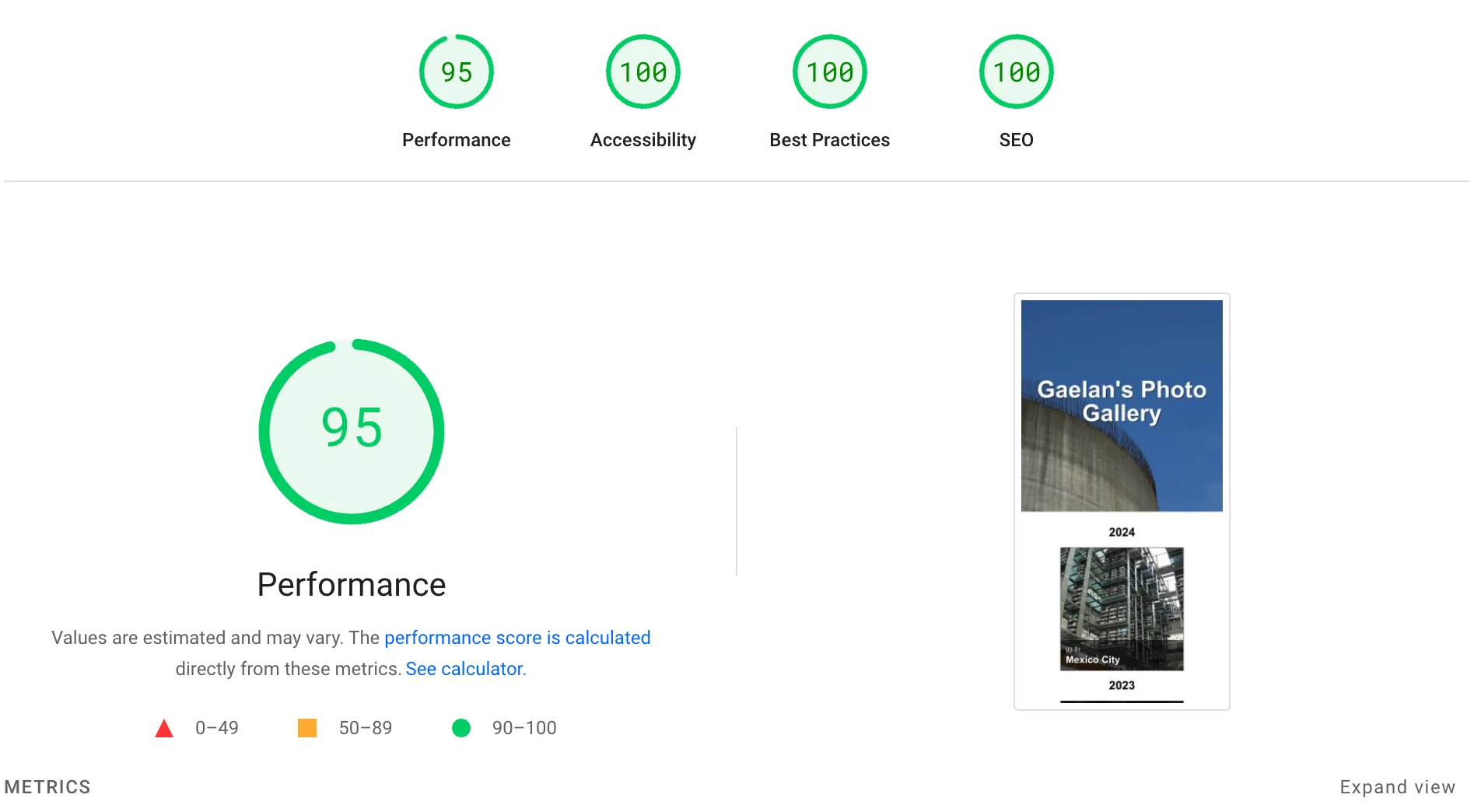
<p>Since the page is static and written from scratch, it’s lightweight and performant. Check out these Pagespeed scores and see just how lightweight the gallery homepage is:</p>

<p><img src="/images/posts/2024-11-11/pagespeed-mobile.webp" alt="Tens across the board!" class="has-border" width="100%" style="max-width: 100%; height: auto; " /></p>

<p>I’m sure there are other Jekyll photo galleries out there, but it felt so rewarding to write one for myself, from scratch. Tuned to do exactly what I need it to do, and nothing more.</p>

<blockquote>
  <p>“This is my gallery. There are many like it, but this one is mine.”</p>
</blockquote>

<p>Bildaro is open source, released under the permissive MIT license. It’s given me great pleasure to write this little thing. You’re welcome to take it for a spin!</p>

<p><a href="https://photos.gaelanlloyd.com">Take a look at my photo gallery</a> to see it in action.</p>]]></content><author><name>Gaelan Lloyd</name></author><category term="photography" /><category term="self-hosted" /><category term="software" /><category term="jekyll" /><summary type="html"><![CDATA[I wrote a self-hosted photo gallery and have shared it on GitHub.]]></summary><media:thumbnail xmlns:media="http://search.yahoo.com/mrss/" url="https://www.gaelanlloyd.com/images/seo/og.jpg" /><media:content medium="image" url="https://www.gaelanlloyd.com/images/seo/og.jpg" xmlns:media="http://search.yahoo.com/mrss/" /></entry><entry><title type="html">Lessons my DIY file server taught me about the ‘Out-of-the-loop performance problem’</title><link href="https://www.gaelanlloyd.com/blog/out-of-loop-performance-problem/" rel="alternate" type="text/html" title="Lessons my DIY file server taught me about the ‘Out-of-the-loop performance problem’" /><published>2024-10-11T00:00:00+00:00</published><updated>2024-10-11T00:00:00+00:00</updated><id>https://www.gaelanlloyd.com/blog/out-of-loop-performance-problem</id><content type="html" xml:base="https://www.gaelanlloyd.com/blog/out-of-loop-performance-problem/"><![CDATA[<p>In <a href="/blog/fix-mac-os-finder-samba-problems/">my recent post</a> I uncovered a bunch of settings needed to fix problems with MacOS clients unable to properly browse my in-home file server. It wasn’t a complicated fix, but it required a deep dive of MacOS-specific settings in Samba. And a lot of trial and error over multiple days.</p>

<p>As I reflect back on this issue, it kept reminding me of this post on <a href="https://smbitjournal.com/2015/07/the-jurassic-park-effect/">The Jurassic Park Effect</a> by Scott Alan Miller. In the article, the author explains that NAS OS’s allow novices to create a production storage environment that’s “dangerously easy” to set up. And in doing so, these OS’s add unecessary complexity, functional limitations, upstream update lag, a possibility of abandonment, and… they shield their operators from understanding basic system fundamtenals necessary to triage and repair problems with the system. This is a perfect illustration of the <a href="https://en.wikipedia.org/wiki/Out-of-the-loop_performance_problem">out-of-the-loop performance problem</a>. All of this has been on my mind recently.</p>

<p>I first found Miller’s article in 2021. And after these 3 years, I can tell you: He’s absolutely right.</p>

<p>My home file server (and, homelab in general) became a great case study for this topic.</p>

<p>A home file server is a relatively straightforward appliance. Running a simple *nix box and a Samba share isn’t tough. But when ZFS came along, I knew I wanted to use it, but I was worried I didn’t know how to use it properly, so I turned to NAS OS’s for expert guidance.</p>

<p>TrueNAS went through a total rewrite shortly after I started using it, and it got too bloated and “dashboardy.” The streamlined simplicity of XigmaNAS (née NAS4Free) caught my attention, and I used it for several years. It worked smoothly and the team didn’t load it up with flashy updates. I fixed up parts of their documentation site as a show of thanks to the project.</p>

<p>But after a while, I found that I needed to grow past what that OS could provide for me. Features in the OS started to turn into roadblocks. My education around ZFS was stunted because I was letting someone else make decisions for me. And I wanted to do more with the server than the pared-down image was built to allow.</p>

<p>Miller was absolutely correct when he said that a NAS OS is “a more complex and less functional version” of the underlying OS it’s built on top of. It’s true for any and every NAS OS out there. New ones are coming and going all the time, and none of them, even the ones built with simplicity and freedom in mind, can escape this truth.</p>

<p>I decided that the training wheels needed to come off.</p>

<h2 id="hunkering-down">Hunkering down</h2>

<p>Over the course of a few months I taught myself slowly and carefully about all the things needed to replace these NAS OS’s. I spun up a barebones FreeBSD server, tested building ZFS pools, running Samba shares, FTP servers, playing with snapshots and transferring datasets around, and a lot more. It was challenging, and fun! And my tinkering didn’t stop there.</p>

<p>Just two weeks ago I completed a migration and consolidation of my entire home lab onto a single FreeBSD server. My dev environments, experiements, and various services are running in jails. I finally mastered bhyve to the point where I was able to retire my Proxmox host so I can virtualize different OS’s like Debian and Windows.</p>

<p>Not only has my setup becomed streamlined and simplified, but my personal knowledge and confidence around these topics has grown tremendously.</p>

<h2 id="looking-back">Looking back</h2>

<p>I can’t ever imagine using a NAS OS ever again at this point. There’s no feature one of these systems could ever offer that would draw me in. Ultimately, I don’t want to be disconnected and kept <em>out-of-the-loop</em>.</p>

<p>I want to be <em>in-the-loop</em>.</p>

<p>I want to know how a vital system like a file server works. I want to know how to build it, configure it, maintain it, and most importantly — how to repair it.</p>

<p>But that takes time, effort, aptitude, and space. I can understand why people turn to NAS OS’s. Some people don’t want to bother with all of this work. And that’s totally fine! It’s just a decision that imposes some limitations and a certain amount of risk.</p>

<p>In my case, I didn’t roll my own because I was simply scared of what I didn’t know. And like the saying goes, I didn’t know what I didn’t know. When it comes to my data, I wanted to be conservative and err on the side of caution. I wanted expert help and guidance. But after a while, once I warmed up to the idea and had time and space to learn, I was able to “earn the knowledge for myself” (<em>Ian Malcom, Jurassic Park</em>). I’m truly glad I made this decision.</p>]]></content><author><name>Gaelan Lloyd</name></author><category term="freebsd" /><category term="storage" /><category term="xigmanas" /><category term="zfs" /><summary type="html"><![CDATA[There are risks and limitations to using a specialized NAS OS's.]]></summary><media:thumbnail xmlns:media="http://search.yahoo.com/mrss/" url="https://www.gaelanlloyd.com/images/seo/og.jpg" /><media:content medium="image" url="https://www.gaelanlloyd.com/images/seo/og.jpg" xmlns:media="http://search.yahoo.com/mrss/" /></entry><entry><title type="html">Fix MacOS Finder problems with Samba file shares</title><link href="https://www.gaelanlloyd.com/blog/fix-mac-os-finder-samba-problems/" rel="alternate" type="text/html" title="Fix MacOS Finder problems with Samba file shares" /><published>2024-08-03T00:00:00+00:00</published><updated>2024-08-03T00:00:00+00:00</updated><id>https://www.gaelanlloyd.com/blog/fix-mac-os-finder-samba-problems</id><content type="html" xml:base="https://www.gaelanlloyd.com/blog/fix-mac-os-finder-samba-problems/"><![CDATA[<p>Using MacOS’s Finder to work with large file share directories on my FreeBSD Samba server was sometimes giving me very strange, erratic behavior. It felt like the server had amnesia or was having hallucinations.</p>

<p>Symptoms included:</p>

<ul>
  <li>Directory contents would take a very long time to load.</li>
  <li>Directory contents would disappear after browsing between sibling folders.</li>
  <li>Directories would show the contents of <em>different</em> sibling folders.</li>
</ul>

<p>The problem was really annoying and took me quite a while to figure out.</p>

<p>At first, I thought it was an issue with Finder. The internet is full of people’s complaints about Finder sure, but I spend a lot of time in Finder and want to try and fix the problem there if possible. I did try using third-party file managers like Commander One and Marta, but even those programs weren’t totally immune to the issues either. That indicated the issue must be with something at a deeper system level. But, was it an issue with the server, the client, or a combination of problems on both sides?</p>

<p>Since I built the file server myself, I assumed it must be a problem I inadvertently caused. Perhaps some setting I had misconfigured, or some configuration value I had overlooked.</p>

<p>These issues didn’t happen on non-SMB protocols (FTP and SSH were working), so I figured it was an issue with Samba. But, non-MacOS clients didn’t have connection issues (Windows, Linux, and FreeBSD clients were working).</p>

<p>Some articles online suggested that Samba itself was to blame, or that MacOS’s implementation of the Samba client was buggy and hopelessly beyond repair. I even considered switching away from Samba to some other protocol, but that wouldn’t be ideal.</p>

<p>After doing a lot of reading and testing, I learned that Finder rather aggressively caches directory listings, and that cache system can be unreliable with large fileshares over Samba. And I also learned that out-of-the-box Samba configurations need to be tweaked slightly to improve connections for MacOS clients.</p>

<p>The fixes below were scoured from many places on the web, including Reddit posts, blog posts, Github repos, and a deep dive of the Samba configuration documentation. It’s taken me a few months to test out various settings combinations, and now things are working properly.</p>

<p>I’ve been working with these new settings for more than two weeks and have not experienced any further issues. Feels like the right time to document and publish the fix!</p>

<h2 id="server-changes">Server changes</h2>

<p>On the server, make the following changes to <code class="language-plaintext highlighter-rouge">smb.conf</code>:</p>

<div class="language-bash highlighter-rouge"><div class="highlight"><pre class="highlight"><code><span class="o">[</span>global]

<span class="c"># Enforce a minimum of Samba v2 (Vista / Server 2008) for client connections</span>
min protocol <span class="o">=</span> SMB2
server min protocol <span class="o">=</span> SMB2

<span class="c"># Improve compatibility with Macs</span>
vfs objects <span class="o">=</span> catia fruit streams_xattr
fruit:aapl <span class="o">=</span> <span class="nb">yes
</span>fruit:nfs_aces <span class="o">=</span> no
fruit:zero_file_id <span class="o">=</span> <span class="nb">yes
</span>fruit:metadata <span class="o">=</span> stream
fruit:encoding <span class="o">=</span> native
spotlight backend <span class="o">=</span> tracker

readdir_attr:aapl_rsize <span class="o">=</span> no
readdir_attr:aapl_finder_info <span class="o">=</span> no
readdir_attr:aapl_max_access <span class="o">=</span> no

fruit:model <span class="o">=</span> MacSamba
fruit:posix_rename <span class="o">=</span> <span class="nb">yes
</span>fruit:veto_appledouble <span class="o">=</span> no
fruit:wipe_intentionally_left_blank_rfork <span class="o">=</span> <span class="nb">yes
</span>fruit:delete_empty_adfiles <span class="o">=</span> <span class="nb">yes</span>

<span class="c"># (OPTIONAL) Don't allow MacOS clients to write .DS_Store files to server shares</span>
veto files <span class="o">=</span> /.snap/.sujournal/._.DS_Store/.DS_Store/.Trashes/.TemporaryItems/
delete veto files <span class="o">=</span> <span class="nb">yes</span>
</code></pre></div></div>

<p>Spotlight searching of Samba shares is disabled by default, but you can add this line to each of your Samba share definitions in <code class="language-plaintext highlighter-rouge">smb.conf</code> to be absolutely sure:</p>

<div class="language-bash highlighter-rouge"><div class="highlight"><pre class="highlight"><code><span class="o">[</span>yourshare]
spotlight <span class="o">=</span> no
</code></pre></div></div>

<h2 id="client-changes">Client changes</h2>

<p>On the MacOS client computers, create <code class="language-plaintext highlighter-rouge">/etc/nsmb.conf</code>:</p>

<div class="language-bash highlighter-rouge"><div class="highlight"><pre class="highlight"><code><span class="o">[</span>default]

<span class="c"># Disable SMB v1</span>
<span class="nv">protocol_vers_map</span><span class="o">=</span>6

<span class="c"># Disable NetBIOS</span>
<span class="nv">port445</span><span class="o">=</span>no_netbios

<span class="c"># Use NTFS streams if supported</span>
<span class="nv">streams</span><span class="o">=</span><span class="nb">yes</span>

<span class="c"># Disable directory caching</span>
<span class="nv">dir_cache_max_cnt</span><span class="o">=</span>0
<span class="nv">dir_cache_max</span><span class="o">=</span>0
<span class="nv">dir_cache_off</span><span class="o">=</span><span class="nb">yes</span>

<span class="c"># Disable packet signing</span>
<span class="nv">signing_required</span><span class="o">=</span>no

<span class="c"># Disable multi-channel connections and prioritize the wired ethernet connection</span>
<span class="nv">mc_prefer_wired</span><span class="o">=</span><span class="nb">yes
</span><span class="nv">mc_on</span><span class="o">=</span>no

<span class="c"># Disable SMB session signing</span>
<span class="nv">validate_neg_off</span><span class="o">=</span><span class="nb">yes</span>
</code></pre></div></div>

<h2 id="applying-the-changes">Applying the changes</h2>

<ul>
  <li>Restart the Samba service on the server.</li>
  <li>Restart each client computer.</li>
</ul>

<p>When you reconnect to the server shares on your machines, these issues shouldn’t occur anymore.</p>]]></content><author><name>Gaelan Lloyd</name></author><category term="annoyances" /><category term="mac" /><category term="samba" /><category term="how-to" /><summary type="html"><![CDATA[MacOS's Finder has bizarre problems working with large Samba shares.]]></summary><media:thumbnail xmlns:media="http://search.yahoo.com/mrss/" url="https://www.gaelanlloyd.com/images/seo/og.jpg" /><media:content medium="image" url="https://www.gaelanlloyd.com/images/seo/og.jpg" xmlns:media="http://search.yahoo.com/mrss/" /></entry><entry><title type="html">Upgrade PHP 8.x on FreeBSD</title><link href="https://www.gaelanlloyd.com/blog/how-to-upgrade-php-80-to-82-on-freebsd/" rel="alternate" type="text/html" title="Upgrade PHP 8.x on FreeBSD" /><published>2023-10-14T00:00:00+00:00</published><updated>2026-02-08T00:00:00+00:00</updated><id>https://www.gaelanlloyd.com/blog/how-to-upgrade-php-80-to-82-on-freebsd</id><content type="html" xml:base="https://www.gaelanlloyd.com/blog/how-to-upgrade-php-80-to-82-on-freebsd/"><![CDATA[<p>Upgrading PHP on FreeBSD takes only a few minutes.</p>

<p>Start off by listing all of the PHP-related packages on your system, including the PHP extensions you have installed.</p>

<div class="language-bash highlighter-rouge"><div class="highlight"><pre class="highlight"><code>pkg query <span class="nt">-a</span> %n | <span class="nb">grep </span>php8
</code></pre></div></div>

<p>We’ll use <code class="language-plaintext highlighter-rouge">phpXX</code> to represent the <em>old, existing</em> version of PHP on the machine.</p>

<p>In a text editor, take off the leading <code class="language-plaintext highlighter-rouge">phpXX-</code> from each extension’s name. Then, put them into a comma-separated format like so:</p>

<div class="language-bash highlighter-rouge"><div class="highlight"><pre class="highlight"><code>bcmath,ctype,curl,dom,…
</code></pre></div></div>

<p>You can use brace expansion to simplify the package install command. Be sure your shell supports brace expansion, otherwise you’ll get an error.</p>

<p>In the next command, let <code class="language-plaintext highlighter-rouge">phpYY</code> be the modern version you want to install (<code class="language-plaintext highlighter-rouge">php83</code>, <code class="language-plaintext highlighter-rouge">php84</code>, <code class="language-plaintext highlighter-rouge">php85</code>, etc.)</p>

<div class="language-bash highlighter-rouge"><div class="highlight"><pre class="highlight"><code><span class="nb">sudo </span>pkg <span class="nb">install </span>phpYY phpYY-<span class="o">{</span>bcmath,ctype,curl,dom,exif,extensions,fileinfo,filter,gd,iconv,mbstring,mysqli,opcache,pdo,pdo_mysql,pdo_odbc,pdo_sqlite,pecl-imagick,pecl-json_post,pecl-mcrypt,phar,posix,session,simplexml,sodium,sqlite3,tidy,tokenizer,xml,xmlreader,xmlwriter,zip,zlib<span class="o">}</span>
</code></pre></div></div>

<p>You may be notified that the packages for the older version will be removed as part of the upgrade process. That’s helpful! Watch for any notices or errors during the upgrade.</p>

<p>If you aren’t told this, or want to be sure the packages are removed:</p>

<div class="language-bash highlighter-rouge"><div class="highlight"><pre class="highlight"><code><span class="nb">sudo </span>pkg remove phpXX phpXX-<span class="o">{</span>your list of packages<span class="o">}</span>
<span class="nb">sudo </span>pkg remove mod_phpXX
</code></pre></div></div>

<p>Restart PHP and Apache and then you’re done!</p>

<div class="language-bash highlighter-rouge"><div class="highlight"><pre class="highlight"><code><span class="nb">sudo </span>service php-fpm restart
<span class="nb">sudo </span>service apache24 restart
</code></pre></div></div>]]></content><author><name>Gaelan Lloyd</name></author><category term="freebsd" /><category term="how-to" /><summary type="html"><![CDATA[Upgrading PHP is fast and easy.]]></summary><media:thumbnail xmlns:media="http://search.yahoo.com/mrss/" url="https://www.gaelanlloyd.com/images/seo/og.jpg" /><media:content medium="image" url="https://www.gaelanlloyd.com/images/seo/og.jpg" xmlns:media="http://search.yahoo.com/mrss/" /></entry><entry><title type="html">Connect Visual Studio Code to FreeBSD remote servers</title><link href="https://www.gaelanlloyd.com/blog/how-to-connect-visual-studio-code-to-freebsd-servers/" rel="alternate" type="text/html" title="Connect Visual Studio Code to FreeBSD remote servers" /><published>2023-06-09T00:00:00+00:00</published><updated>2023-06-09T00:00:00+00:00</updated><id>https://www.gaelanlloyd.com/blog/how-to-connect-visual-studio-code-to-freebsd-servers</id><content type="html" xml:base="https://www.gaelanlloyd.com/blog/how-to-connect-visual-studio-code-to-freebsd-servers/"><![CDATA[<div class="alert alert-notice">
  <p><strong>Update Feb 2, 2024:</strong> <a href="https://code.visualstudio.com/updates/v1_86#_linux-minimum-requirements-update">Recent changes to Visual Studio Code</a> require versions of <code>glibc</code> that aren't provided by the Linux compatibility packages in FreeBSD. This change completely broke my workflow yesterday &ndash; a Monday morning and major launch day &ndash; resulting in the error <code>The remote host may not meet VS Code Server's prerequisites for glibc and libstdc++</code>.</p>
  <p>After some substantial and understandable public outcry, <a href="https://github.com/microsoft/vscode/issues/203375#issuecomment-1927893504">they've decided to walk back the changes for 12 months</a>.</p>
</div>

<p>Seeing the writing on the wall, I can assume that support for connecting to FreeBSD remote machines will not be a priority for the team. I want to limit my future risk, so I’ve decided to change my process over to using the <code class="language-plaintext highlighter-rouge">SSH FS</code> plugin by Kelvin Schoofs.</p>

<p>The good news is there won’t be any need to install Linux compatibility binaries on FreeBSD machines, so the steps below aren’t necessary. It always felt a bit too clunky of a solution, anyway. You can still connect to remotes, edit files, and even launch remote terminals.</p>

<p>But, the bad news is that some advanced VSCode functionality for remote file systems might not be accessible (Git file status indicators, etc.) Those are nice-to-have features, but not critical for my day-to-day work.</p>

<hr />

<p>Visual Studio Code’s native SSH remote explorer connection is more than just an SSH tunnel — it needs to be able to execute some Linux binaries on the remote server in order for all of the fancy functionality to work.</p>

<p>When connecting to a FreeBSD server, VSCode may fail to connect and give you errors like:</p>

<div class="language-bash highlighter-rouge"><div class="highlight"><pre class="highlight"><code><span class="o">[]</span> <span class="o">&gt;</span> Unsupported platform: FreeBSD
<span class="o">&gt;</span> <span class="nv">exitCode</span><span class="o">==</span><span class="nv">35</span><span class="o">==</span>
<span class="o">&gt;</span> <span class="nv">osReleaseId</span><span class="o">==</span><span class="nv">freebsd</span><span class="o">==</span>
<span class="o">[]</span> Failed to parse remote port from server output
<span class="o">[]</span> Terminating <span class="nb">local </span>server
<span class="o">[]</span> <span class="o">&gt;</span> local-server-1&gt; ssh child died, shutting down
</code></pre></div></div>

<p>Luckily, getting VSCode connecting to FreeBSD isn’t tough.</p>

<h2 id="how-to-connect-vscode-to-a-freebsd-remote-server">How to connect VSCode to a FreeBSD remote server</h2>

<p>First, on the FreeBSD server, enable Linux compatibility mode, and then install the Linux base core.</p>

<div class="language-bash highlighter-rouge"><div class="highlight"><pre class="highlight"><code><span class="nb">sudo </span>sysrc <span class="nv">linux_enable</span><span class="o">=</span><span class="s2">"YES"</span>
<span class="nb">sudo </span>service linux start
<span class="nb">sudo </span>pkg <span class="nb">install </span>linux_base-c7
</code></pre></div></div>

<p>Then, on the machine you’re using VSCode on, edit <code class="language-plaintext highlighter-rouge">.ssh/config</code> and add these lines for the FreeBSD server’s entry.</p>

<div class="language-bash highlighter-rouge"><div class="highlight"><pre class="highlight"><code>Host xxx
  Hostname xxx
  RemoteCommand /compat/linux/usr/bin/bash
  RequestTTY force
</code></pre></div></div>

<p>Finally, find the <code class="language-plaintext highlighter-rouge">Enable Remote Command</code> setting in VSCode and enable it.</p>

<p>Voila! Head on over to the remote explorer and connect to the server. You’ll now be able to interact with the FreeBSD remote just like it was a Linux host, with all the helpful functionality in VSCode that you’re used to.</p>

<p>It took a long time to figure this one out. Credit to <a href="https://gist.github.com/mateuszkwiatkowski">Mateusz Kwiatkowski</a> and <a href="https://gist.github.com/oliver-giersch">Oliver Giersch</a> for the helpful <a href="https://gist.github.com/mateuszkwiatkowski/ce486d692b4cb18afc2c8c68dcfe8602">comments</a> I stumbled upon which explained the missing parts of this process.</p>]]></content><author><name>Gaelan Lloyd</name></author><category term="freebsd" /><category term="how-to" /><summary type="html"><![CDATA[Here's how you can connect to remote FreeBSD hosts natively using VSCode's powerful remote explorer.]]></summary><media:thumbnail xmlns:media="http://search.yahoo.com/mrss/" url="https://www.gaelanlloyd.com/images/seo/og.jpg" /><media:content medium="image" url="https://www.gaelanlloyd.com/images/seo/og.jpg" xmlns:media="http://search.yahoo.com/mrss/" /></entry><entry><title type="html">How to Create a FreeBSD Web Server (FAMP Stack) - 2026 Guide</title><link href="https://www.gaelanlloyd.com/blog/create-a-freebsd-web-server/" rel="alternate" type="text/html" title="How to Create a FreeBSD Web Server (FAMP Stack) - 2026 Guide" /><published>2023-01-26T00:00:00+00:00</published><updated>2026-03-03T00:00:00+00:00</updated><id>https://www.gaelanlloyd.com/blog/create-a-freebsd-web-server</id><content type="html" xml:base="https://www.gaelanlloyd.com/blog/create-a-freebsd-web-server/"><![CDATA[<p>In this updated 2026 guide, I’ll show you how to create a FreeBSD web server using a FAMP stack (FreeBSD, Apache, MariaDB, and PHP). If you’re looking for a FreeBSD web server howto, this step-by-step tutorial walks you through the full setup.</p>

<h2>Table of contents</h2>

<ol class="toc">

    <li>
        <a href="#before-starting">Before we begin</a>


    </li>

    <li>
        <a href="#provision">Find hosting and provision an instance</a>


    </li>

    <li>
        <a href="#setup">Set up FreeBSD</a>


    </li>

    <li>
        <a href="#email">Simplify outbound email handling</a>


    </li>

    <li>
        <a href="#web-server">Install the Apache web server</a>


    </li>

    <li>
        <a href="#php">Install PHP</a>


    </li>

    <li>
        <a href="#database-server">Install the MariaDB database server</a>


    </li>

    <li>
        <a href="#final-steps">Final steps</a>


    </li>

    <li>
        <a href="#tips-and-tricks">Tips and tricks</a>


    </li>

</ol>

<h2 id="before-we-begin"><a name="before-starting" class="anchor"></a>Before we begin</h2>

<ul>
  <li>This guide is meant to supplement the <a href="https://docs.freebsd.org/en/books/handbook/">FreeBSD handbook</a>, which should be considered the canonical documentation source for FreeBSD.</li>
  <li>If you found this guide from the future, please be aware these instructions may be outdated.</li>
  <li>This guide assumes you have some basic experience with BSD-style servers. If you’re familiar with Linux, you should be able to follow along nicely!</li>
  <li>This guide isn’t meant to act as a tuning guide for Apache, PHP, or MariaDB. That’s beyond the scope of this article. I may write about tuning those services in future posts!</li>
</ul>

<h2 id="step-1-find-hosting-and-provision-an-instance"><a name="provision" class="anchor"></a>Step 1. Find hosting and provision an instance</h2>

<p>You can create FreeBSD instances on:</p>

<ul>
  <li>Vultr</li>
  <li>AWS Lightsail</li>
  <li>AWS EC2</li>
</ul>

<p>FreeBSD is supported on <a href="https://www.linode.com/docs/guides/install-freebsd-on-linode/">Linode</a> and <a href="https://www.digitalocean.com/community/tutorials/how-to-get-started-with-freebsd">DigitalOcean</a>, but requires some extra steps in order to get an instance up and running.</p>

<p>Choose a provider and build an instance. If you’re not sure what size machine to get, start small and upgrade later if you need to. A $7/mo AWS Lightsail instance (1 GB RAM, 2 vCPU, 40 GB SSD) is more than sufficient to host several WordPress sites. Static content caching and a <a href="/presentations/how-to-set-up-a-cdn/">CDN</a> can help reduce load on the server.</p>

<h2 id="step-2-set-up-freebsd"><a name="setup" class="anchor"></a>Step 2. Set up FreeBSD</h2>

<p>When the machine is provisioned it’ll come with a baseline OS image. You’ll want to do a few things first to finish the install of FreeBSD and get the machine configured for use as your web server.</p>

<h3 id="update-the-system">Update the system</h3>

<p>The first thing to do is to log in as <code class="language-plaintext highlighter-rouge">root</code> and update the system software.</p>

<p>Start by updating the FreeBSD core.</p>

<div class="language-shell highlighter-rouge"><div class="highlight"><pre class="highlight"><code><span class="c"># freebsd-update fetch install</span>
</code></pre></div></div>

<p>Then, update the non-core software packages.</p>

<div class="language-shell highlighter-rouge"><div class="highlight"><pre class="highlight"><code><span class="c"># pkg update</span>
<span class="c"># pkg upgrade</span>
</code></pre></div></div>

<h3 id="set-the-timezone">Set the timezone</h3>

<div class="language-shell highlighter-rouge"><div class="highlight"><pre class="highlight"><code><span class="c"># tzsetup</span>
</code></pre></div></div>

<h3 id="install-some-useful-applications">Install some useful applications</h3>

<div class="language-shell highlighter-rouge"><div class="highlight"><pre class="highlight"><code><span class="c"># pkg install doas wget git bash bash-completion tmux</span>
</code></pre></div></div>

<div class="alert alert-info">
  <p><strong>Helpful hint:</strong> Be careful when installing <code>vim</code>. Sometimes you might accidentally choose the X11 graphical version, which will load a ton of packages that you don't need (and don't want) running on a web server. If you run this command and see the total install size is over 15 MB and includes dozens of packages (like <code>gtk3</code>, <code>wayland</code>, <code>adwaita-icon-theme</code>, or lots of <code>libX___</code> packages) you're probably installing the wrong one.</p>
</div>

<div class="language-shell highlighter-rouge"><div class="highlight"><pre class="highlight"><code><span class="c"># pkg install vim</span>
</code></pre></div></div>

<h3 id="set-up-doas-instead-of-sudo">Set up doas (instead of sudo)</h3>

<p>I’ve changed from recommending <code class="language-plaintext highlighter-rouge">sudo</code> to <code class="language-plaintext highlighter-rouge">doas</code> instead. <code class="language-plaintext highlighter-rouge">doas</code> operates the same way, yet is smaller and simpler.</p>

<p><code class="language-plaintext highlighter-rouge">/usr/local/etc/doas.conf</code> (Ensure this file ends with a blank line)</p>

<div class="language-shell highlighter-rouge"><div class="highlight"><pre class="highlight"><code>permit nopass :wheel

</code></pre></div></div>

<h3 id="set-the-hostname">Set the hostname</h3>

<p>Verify that your hostname looks appropriate.</p>

<div class="language-shell highlighter-rouge"><div class="highlight"><pre class="highlight"><code><span class="c"># hostname</span>
</code></pre></div></div>

<p>If you need to change it, edit <code class="language-plaintext highlighter-rouge">/etc/rc.conf</code> and modify the <code class="language-plaintext highlighter-rouge">hostname=""</code> line. Then, run <code class="language-plaintext highlighter-rouge">doas hostname [your-hostname]</code> to update the hostname without rebooting. Validate your work again by running <code class="language-plaintext highlighter-rouge">hostname</code>.</p>

<h3 id="create-a-swapfile">Create a swapfile</h3>

<p>Some VPS’s don’t create swapfiles when the instances are provisioned. It’s a good idea to create one, even a small one (512-1,024 MB).</p>

<p>First, create the swapfile and set permissions on it.</p>

<div class="language-shell highlighter-rouge"><div class="highlight"><pre class="highlight"><code><span class="c"># dd if=/dev/zero of=/usr/swap0 bs=1m count=512</span>
<span class="c"># chmod 600 /usr/swap0</span>
</code></pre></div></div>

<p>Then, edit <code class="language-plaintext highlighter-rouge">/etc/fstab</code> and add this line:</p>

<div class="language-shell highlighter-rouge"><div class="highlight"><pre class="highlight"><code>md99   none   swap   sw,file<span class="o">=</span>/usr/swap0,late   0   0
</code></pre></div></div>

<p>Next, activate the swapfile with:</p>

<div class="language-shell highlighter-rouge"><div class="highlight"><pre class="highlight"><code><span class="c"># swapon -aL</span>
</code></pre></div></div>

<h3 id="create-your-non-root-user-account">Create your non-root user account</h3>

<p>Create a user account for yourself.</p>

<div class="language-shell highlighter-rouge"><div class="highlight"><pre class="highlight"><code><span class="c"># adduser</span>
</code></pre></div></div>

<p>You’ll need to answer a dozen or so questions during this process. Simply press <code class="language-plaintext highlighter-rouge">[Enter]</code> unless you’re at one of these prompts:</p>

<ol>
  <li>Select a username (should be all lowercase, no symbols or spaces).</li>
  <li>Provide the user’s full name.</li>
  <li>Invite to other groups? Add to <code class="language-plaintext highlighter-rouge">wheel</code> group so user can use <code class="language-plaintext highlighter-rouge">doas</code>.</li>
  <li>Shell? Choose <code class="language-plaintext highlighter-rouge">bash</code> if you want.</li>
  <li>Provide a password, and enter it twice to make sure it’s entered correctly.</li>
  <li>Review the entries.</li>
  <li>Stop adding users if you’re done.</li>
</ol>

<p>The process will look like this:</p>

<div class="language-shell highlighter-rouge"><div class="highlight"><pre class="highlight"><code>Username: btorres                                                       &lt;<span class="nt">---</span> <span class="o">(</span>1<span class="o">)</span>
Full name: B<span class="s1">'Elanna Torres                                              &lt;--- (2)
Uid (Leave empty for default):
Login group [btorres]:
Login group is btorres. Invite btorres into other groups? []: wheel     &lt;--- (3)
Login class [default]:
Shell (sh csh tcsh bash rbash git-shell nologin) [sh]:                  &lt;--- (4)
Home directory [/home/btorres]:
Home directory permissions (Leave empty for default):
Use password-based authentication? [yes]:
Use an empty password? (yes/no) [no]:
Use a random password? (yes/no) [no]:
Enter password:                                                         &lt;--- (5)
Enter password again:                                                   &lt;--- (5)
Lock out the account after creation? [no]:
Username   : btorres
Password   : *****
Full Name  : B'</span>Elanna Torres
Uid        : 1002
Class      :
Groups     : btorres wheel
Home       : /home/btorres
Home Mode  :
Shell      : /bin/sh
Locked     : no
OK? <span class="o">(</span><span class="nb">yes</span>/no<span class="o">)</span>: <span class="nb">yes</span>                                                       &lt;<span class="nt">---</span> <span class="o">(</span>6<span class="o">)</span>
adduser: INFO: Successfully added <span class="o">(</span>btorres<span class="o">)</span> to the user database.
Add another user? <span class="o">(</span><span class="nb">yes</span>/no<span class="o">)</span>: no                                          &lt;<span class="nt">---</span> <span class="o">(</span>7<span class="o">)</span>
Goodbye!
</code></pre></div></div>

<p>If you want to change an existing user’s shell to <code class="language-plaintext highlighter-rouge">bash</code>:</p>

<div class="language-shell highlighter-rouge"><div class="highlight"><pre class="highlight"><code><span class="c"># chsh -s /usr/local/bin/bash [username]</span>
</code></pre></div></div>

<p>And then add this to the bottom of the user’s <code class="language-plaintext highlighter-rouge">~/.profile</code> so that the system will parse their <code class="language-plaintext highlighter-rouge">~/.bashrc</code> on login:</p>

<div class="language-shell highlighter-rouge"><div class="highlight"><pre class="highlight"><code><span class="c"># Load .bashrc on login</span>
<span class="k">if</span> <span class="o">[[</span> <span class="nv">$-</span> <span class="o">==</span> <span class="k">*</span>i<span class="k">*</span> <span class="o">&amp;&amp;</span> <span class="nt">-f</span> ~/.bashrc <span class="o">]]</span><span class="p">;</span> <span class="k">then</span>
    <span class="nb">.</span> ~/.bashrc
<span class="k">fi</span>
</code></pre></div></div>

<div class="alert alert-notice">
  <p><strong>Important note:</strong> <u>Do not change <code>root</code>'s shell</u> (or the <code>ec2-user</code> user's on AWS machines).</p>
  <p>Since FreeBSD separates the base operating system from third-party packages and ports, non-base shells are installed to <code>/usr/local/bin</code>, a location that might not be mountable at boot time with a damaged system.</p>
  <p>It's also possible that the system could enter a state where <code>bash</code> can't run for any number of reasons (during OS upgrades, botched package updates, etc.).</p>
  <p>If you change <code>root</code>'s (or AWS's <code>ec2-user</code>'s) shell away from the default, you risk being unable to log in to the system with no way to correct the problem. So, don't change those user's shells.</p>
</div>

<h3 id="set-up-ssh">Set up SSH</h3>

<p>Ensure you’re familar with and are using <a href="https://docs.freebsd.org/en/books/handbook/security/#security-ssh-keygen">SSH key-based authentication</a>.</p>

<p>Switch to your new user account.</p>

<div class="language-shell highlighter-rouge"><div class="highlight"><pre class="highlight"><code><span class="c"># su [username]</span>
</code></pre></div></div>

<p>Add your SSH public keys to <code class="language-plaintext highlighter-rouge">~/.ssh/authorized_keys</code>, then lock down that file’s permissions. That file might not exist for new users, so you’ll need to create it.</p>

<div class="language-shell highlighter-rouge"><div class="highlight"><pre class="highlight"><code><span class="nv">$ </span>vim ~/.ssh/authorized_keys
  <span class="o">(</span><span class="nb">paste </span><span class="k">in </span>your public keys<span class="o">)</span>
  <span class="o">(</span>save and quit<span class="o">)</span>

<span class="nv">$ </span><span class="nb">chmod </span>600 ~/.ssh/authorized_keys
</code></pre></div></div>

<p>Log out as your user and return to root with:</p>

<div class="language-shell highlighter-rouge"><div class="highlight"><pre class="highlight"><code><span class="nb">exit</span>
</code></pre></div></div>

<h2 id="step-3-simplify-outbound-email-handling"><a name="email" class="anchor"></a>Step 3. Simplify outbound email handling</h2>

<p>FreeBSD comes with a feature-rich inbound/outbound email system via <code class="language-plaintext highlighter-rouge">sendmail</code>. It’s too complex for most server installs that only need to send outbound emails (such as system alerts, cron job results, password reset emails via PHP, etc.).</p>

<p>We’ll replace <code class="language-plaintext highlighter-rouge">sendmail</code> with the lightweight, outbound-only <code class="language-plaintext highlighter-rouge">ssmtp</code>.</p>

<h3 id="disable-sendmail">Disable sendmail</h3>

<p>Edit <code class="language-plaintext highlighter-rouge">/etc/rc.conf</code> and add this to the bottom:</p>

<div class="language-shell highlighter-rouge"><div class="highlight"><pre class="highlight"><code><span class="c"># Disable sendmail (we're using ssmtp)</span>
<span class="nv">sendmail_enable</span><span class="o">=</span><span class="s2">"NO"</span>
<span class="nv">sendmail_submit_enable</span><span class="o">=</span><span class="s2">"NO"</span>
<span class="nv">sendmail_outbound_enable</span><span class="o">=</span><span class="s2">"NO"</span>
<span class="nv">sendmail_msp_queue_enable</span><span class="o">=</span><span class="s2">"NO"</span>
</code></pre></div></div>

<p>Then, stop the running <code class="language-plaintext highlighter-rouge">sendmail</code> service with:</p>

<div class="language-shell highlighter-rouge"><div class="highlight"><pre class="highlight"><code>service sendmail stop
</code></pre></div></div>

<h3 id="install-ssmtp">Install ssmtp</h3>

<p>Follow <a href="https://wiki.freebsd.org/Ports/mail/ssmtp">these steps</a> to install <code class="language-plaintext highlighter-rouge">ssmtp</code>.</p>

<h2 id="step-4-install-the-apache-web-server"><a name="web-server" class="anchor"></a>Step 4. Install the Apache web server</h2>

<p>We’ll use Apache here, but there are several other web servers you could choose, including Nginx or Lighttpd.</p>

<h3 id="install-apache">Install Apache</h3>

<p>Find and install the latest version of Apache.</p>

<div class="language-shell highlighter-rouge"><div class="highlight"><pre class="highlight"><code><span class="c"># pkg search apache | grep -i server</span>
apache24-2.4.66                Version 2.4.x of Apache web server

<span class="c"># pkg install apache24</span>
</code></pre></div></div>

<p>Ping your hostname and ensure that it resolves to the machine’s IP address. If you need to make changes, check either <code class="language-plaintext highlighter-rouge">/etc/nsswitch.conf</code> or <code class="language-plaintext highlighter-rouge">/etc/hosts</code>.</p>

<div class="language-shell highlighter-rouge"><div class="highlight"><pre class="highlight"><code><span class="c"># ping [hostname]</span>
</code></pre></div></div>

<p>Enable Apache at boot:</p>

<div class="language-shell highlighter-rouge"><div class="highlight"><pre class="highlight"><code><span class="c"># sysrc apache24_enable="YES"</span>
</code></pre></div></div>

<h3 id="configure-apache">Configure Apache</h3>

<p>First, make a backup copy of <code class="language-plaintext highlighter-rouge">/usr/local/etc/apache24/httpd.conf</code>, then edit the file.</p>

<p><code class="language-plaintext highlighter-rouge">/usr/local/etc/apache24/httpd.conf</code></p>

<ul>
  <li>Set <code class="language-plaintext highlighter-rouge">ServerName</code> to either a FQDN or the server’s IP address</li>
  <li>Uncomment these lines:</li>
</ul>

<div class="language-shell highlighter-rouge"><div class="highlight"><pre class="highlight"><code>Include etc/apache24/extra/httpd-ssl.conf
Include etc/apache24/extra/httpd-mpm.conf

<span class="c"># Uncomment any modules you want to enable</span>
LoadModule authn_socache_module libexec/apache24/mod_authn_socache.so
LoadModule socache_shmcb_module libexec/apache24/mod_socache_shmcb.so
LoadModule ssl_module libexec/apache24/mod_ssl.so
LoadModule deflate_module libexec/apache24/mod_deflate.so
LoadModule expires_module libexec/apache24/mod_expires.so
LoadModule headers_module libexec/apache24/mod_headers.so
LoadModule speling_module libexec/apache24/mod_speling.so
LoadModule alias_module libexec/apache24/mod_alias.so
LoadModule rewrite_module libexec/apache24/mod_rewrite.so
</code></pre></div></div>

<p>Make a backup copy of <code class="language-plaintext highlighter-rouge">/usr/local/etc/apache24/extra/httpd-ssl.conf</code>, then edit the file.</p>

<p><code class="language-plaintext highlighter-rouge">/usr/local/etc/apache24/extra/httpd-ssl.conf</code></p>

<ul>
  <li>Comment out line <code class="language-plaintext highlighter-rouge">Listen 443</code></li>
  <li>Remove the default SSL virtualhost example at the bottom of the file. (Hint: it starts with <code class="language-plaintext highlighter-rouge">&lt;VirtualHost _default_:443&gt;</code> and continues for about 170 lines until the closing <code class="language-plaintext highlighter-rouge">&lt;/VirtualHost&gt;</code>. Remove all of those lines.)</li>
  <li>Add these lines (and follow the link in your web browser, ensure the protocols listed below are still up-to-date):</li>
</ul>

<div class="language-shell highlighter-rouge"><div class="highlight"><pre class="highlight"><code>SSLProtocol <span class="nt">-all</span> +TLSv1.2 +TLSv1.3
SSLProxyProtocol <span class="nt">-all</span> +TLSv1.2 +TLSv1.3
</code></pre></div></div>

<p>Later, you’ll add your virtualhost files and other common configs to <code class="language-plaintext highlighter-rouge">/usr/local/etc/apache24/Includes/</code>.</p>

<h4 id="validate-the-configuration">Validate the configuration</h4>

<p>Let’s ensure our configuration files are set up properly. Run:</p>

<div class="language-shell highlighter-rouge"><div class="highlight"><pre class="highlight"><code><span class="c"># apachectl -t</span>
</code></pre></div></div>

<p>If Apache is running and you want to validate the configuration files, run:</p>

<div class="language-shell highlighter-rouge"><div class="highlight"><pre class="highlight"><code><span class="c"># service apache24 configtest</span>
</code></pre></div></div>

<p>If you get the <code class="language-plaintext highlighter-rouge">Could not reliably determine the server's fully qualified domain name</code> error, try adding a <code class="language-plaintext highlighter-rouge">ServerName</code> parameter in <code class="language-plaintext highlighter-rouge">/usr/local/etc/apache24/httpd.conf</code></p>

<p>If there are no errors, start Apache:</p>

<div class="language-shell highlighter-rouge"><div class="highlight"><pre class="highlight"><code><span class="c"># service apache24 start</span>
</code></pre></div></div>

<p>Browse to the machine’s IP address (or hostname) and make sure you see the Apache “It works!” message. If you don’t see anything, ensure that Apache is running, and monitor <code class="language-plaintext highlighter-rouge">/var/log/httpd-error.log</code> and <code class="language-plaintext highlighter-rouge">/var/log/httpd-apache.log</code> for hints that can help you identify problems.</p>

<p>If you’re stuck, perhaps there’s some misconfiguration somewhere. Apache’s default configuration file pathway is, in order (all of the files below are in <code class="language-plaintext highlighter-rouge">/usr/local/etc/apache24/</code>):</p>

<ol>
  <li><code class="language-plaintext highlighter-rouge">httpd.conf</code></li>
  <li><code class="language-plaintext highlighter-rouge">extra/httpd-mpm.conf</code></li>
  <li><code class="language-plaintext highlighter-rouge">extra/proxy-html.conf</code></li>
  <li><code class="language-plaintext highlighter-rouge">extra/httpd-ssl.conf</code></li>
  <li><code class="language-plaintext highlighter-rouge">Include/*.conf</code></li>
</ol>

<h2 id="step-5-install-php"><a name="php" class="anchor"></a>Step 5. Install PHP</h2>

<p>Find the latest versions of PHP:</p>

<div class="language-shell highlighter-rouge"><div class="highlight"><pre class="highlight"><code><span class="c"># pkg search php | grep -i scripting</span>
php82-8.2.30                   PHP Scripting Language <span class="o">(</span>8.2.X branch<span class="o">)</span>
php83-8.3.29                   PHP Scripting Language <span class="o">(</span>8.3.X branch<span class="o">)</span>
php84-8.4.16                   PHP Scripting Language <span class="o">(</span>8.4.X branch<span class="o">)</span>
php85-8.5.1                    PHP Scripting Language <span class="o">(</span>8.5.X branch<span class="o">)</span>
</code></pre></div></div>

<div class="alert alert-info">
  <p><strong>Helpful hint:</strong> If you're going to be running a WordPress site, the latest version of PHP might be &quot;too new&quot; for WordPress and third-party plugins. If you encounter errors, try installing an older version of PHP.</p>
</div>

<p>Install PHP and related packages (we’ll use v8.3 here):</p>

<div class="language-shell highlighter-rouge"><div class="highlight"><pre class="highlight"><code><span class="c"># pkg install php83 php83-mysqli php83-pdo</span>

<span class="c"># For WordPress support, also install:</span>
<span class="c"># pkg install php83-{curl,dom,exif,fileinfo,filter,gd,iconv,mbstring,phar,simplexml,sodium,xml,xmlreader,zip,zlib}</span>
</code></pre></div></div>

<p>Validate that <code class="language-plaintext highlighter-rouge">php-fpm</code> was installed.</p>

<div class="language-shell highlighter-rouge"><div class="highlight"><pre class="highlight"><code>php-fpm <span class="nt">-v</span>
</code></pre></div></div>

<p>Put a <code class="language-plaintext highlighter-rouge">php.ini</code> file into place.</p>

<p>FreeBSD’s PHP doesn’t come with a <code class="language-plaintext highlighter-rouge">php.ini</code> file. There are two templates provided, one for production machines, and one for development machines. You’ll need to select one to start with and then customize from there.</p>

<p>The development template has settings that reduce or eliminate OPcode caching, so code changes will be visible immediately, at the expense of page rendering speed.</p>

<div class="language-shell highlighter-rouge"><div class="highlight"><pre class="highlight"><code><span class="c"># cp /usr/local/etc/php.ini-production /usr/local/etc/php.ini</span>
<span class="nt">--</span> OR <span class="nt">--</span>
<span class="c"># cp /usr/local/etc/php.ini-development /usr/local/etc/php.ini</span>
</code></pre></div></div>

<p>At the end of the <code class="language-plaintext highlighter-rouge">[PHP]</code> section:</p>

<div class="language-ini highlighter-rouge"><div class="highlight"><pre class="highlight"><code><span class="c">; (2026) This might not be necessary anymore. Leave it commented out unless necessary.
; Don't serve suggested files in misspelled URL requests.
; cgi.fix_pathinfo=0
</span>
<span class="c">; Dev server? Reload php files instantly
</span><span class="py">revalidate_freq</span><span class="p">=</span><span class="s">0</span>

<span class="c">; Big or complex site? Divi/Elementor?
</span><span class="py">memory_limit</span> <span class="p">=</span> <span class="s">256M</span>
<span class="c">; memory_limit = 512M
</span>
<span class="c">; Need big uploads?
</span><span class="py">post_max_size</span> <span class="p">=</span> <span class="s">32M</span>
<span class="py">upload_max_filesize</span> <span class="p">=</span> <span class="s">32M</span>
</code></pre></div></div>

<p>At the end of the <code class="language-plaintext highlighter-rouge">[Pdo_mysql]</code> section:</p>

<div class="language-ini highlighter-rouge"><div class="highlight"><pre class="highlight"><code><span class="nn">[Pdo_mysql]</span>
<span class="py">pdo_mysql.default_socket</span><span class="p">=</span><span class="s">/var/run/mysql/mysql.sock</span>
</code></pre></div></div>

<p>Next, edit <code class="language-plaintext highlighter-rouge">/usr/local/etc/php-fpm.d/www.conf</code></p>

<ul>
  <li>Make note of the pool name (defaults to <code class="language-plaintext highlighter-rouge">www</code>)</li>
  <li>Make a note of the user/group (defaults to <code class="language-plaintext highlighter-rouge">www</code>)</li>
  <li>Change <code class="language-plaintext highlighter-rouge">listen</code> from <code class="language-plaintext highlighter-rouge">127.0.0.1:9000</code> to <code class="language-plaintext highlighter-rouge">/var/run/php-fpm.sock</code></li>
  <li>Uncomment the socket permissions section (<code class="language-plaintext highlighter-rouge">listen.owner</code>, <code class="language-plaintext highlighter-rouge">listen.group</code>, and <code class="language-plaintext highlighter-rouge">listen.mode</code>)</li>
</ul>

<p>Validate the configs:</p>

<div class="language-shell highlighter-rouge"><div class="highlight"><pre class="highlight"><code>php-fpm <span class="nt">-t</span>
</code></pre></div></div>

<p>Update Apache to look for and execute <code class="language-plaintext highlighter-rouge">index.php</code> files by editing <code class="language-plaintext highlighter-rouge">/usr/local/etc/apache24/httpd.conf</code> and adding <code class="language-plaintext highlighter-rouge">index.php</code> to <code class="language-plaintext highlighter-rouge">DirectoryIndex</code>, like so:</p>

<div class="language-shell highlighter-rouge"><div class="highlight"><pre class="highlight"><code>DirectoryIndex index.php index.html index.htm
</code></pre></div></div>

<p>Next, connect Apache with PHP by editing (or creating) <code class="language-plaintext highlighter-rouge">/usr/local/etc/apache24/Includes/php.conf</code>:</p>

<div class="language-shell highlighter-rouge"><div class="highlight"><pre class="highlight"><code>&lt;FilesMatch <span class="s2">"</span><span class="se">\.</span><span class="s2">php$"</span><span class="o">&gt;</span>
    SetHandler <span class="s2">"proxy:unix:/var/run/php-fpm.sock|fcgi://localhost/"</span>
&lt;/FilesMatch&gt;
</code></pre></div></div>

<p>Enable PHP at boot:</p>

<div class="language-shell highlighter-rouge"><div class="highlight"><pre class="highlight"><code><span class="c"># sysrc php_fpm_enable=YES</span>
</code></pre></div></div>

<p>Create a demo page to show that PHP is working at <code class="language-plaintext highlighter-rouge">/usr/local/www/apache24/data/index.php</code> and put in these contents:</p>

<div class="language-php highlighter-rouge"><div class="highlight"><pre class="highlight"><code><span class="nt">&lt;html&gt;&lt;body&gt;</span><span class="cp">&lt;?php</span> <span class="nb">phpinfo</span><span class="p">();</span> <span class="cp">?&gt;</span><span class="nt">&lt;/body&gt;&lt;/html&gt;</span>
</code></pre></div></div>

<p>Then, start PHP:</p>

<div class="language-shell highlighter-rouge"><div class="highlight"><pre class="highlight"><code><span class="c"># service php_fpm start</span>
</code></pre></div></div>

<p>Browse to your web server’s hostname or IP address and you should see a long PHP information page.</p>

<p>If you don’t see anything, or if you get any errors, monitor <code class="language-plaintext highlighter-rouge">/var/log/php-fpm.log</code> for hints that can help you identify problems. Also, check the Apache log files <code class="language-plaintext highlighter-rouge">/var/log/httpd-error.log</code> and <code class="language-plaintext highlighter-rouge">/var/log/httpd-apache.log</code> for clues.</p>

<h2 id="step-6-install-the-mariadb-database-server"><a name="database-server" class="anchor"></a>Step 6. Install the MariaDB database server</h2>

<p>Find the latest version of MariaDB, then install it.</p>

<div class="language-shell highlighter-rouge"><div class="highlight"><pre class="highlight"><code><span class="c"># pkg search mariadb | grep -i server</span>

mariadb1011-server-10.11.15    Multithreaded SQL database <span class="o">(</span>server<span class="o">)</span>
mariadb106-server-10.6.24      Multithreaded SQL database <span class="o">(</span>server<span class="o">)</span>
mariadb114-server-11.4.9       Multithreaded SQL database <span class="o">(</span>server<span class="o">)</span>
mariadb118-server-11.8.5       Multithreaded SQL database <span class="o">(</span>server<span class="o">)</span>          &lt;<span class="nt">---</span>

<span class="c"># pkg install mariadb118-server</span>
</code></pre></div></div>

<p>Set MariaDB to start at boot and start the service.</p>

<div class="language-shell highlighter-rouge"><div class="highlight"><pre class="highlight"><code><span class="c"># sysrc mysql_enable=YES</span>
<span class="c"># service mysql-server start</span>
</code></pre></div></div>

<p>Secure the installation</p>

<div class="language-shell highlighter-rouge"><div class="highlight"><pre class="highlight"><code><span class="c"># /usr/local/bin/mysql_secure_installation</span>
</code></pre></div></div>

<p>When prompted:</p>

<ul>
  <li><em>Do not</em> provide a root password, just press <code class="language-plaintext highlighter-rouge">[Enter]</code></li>
  <li>Use Unix socket authentication</li>
  <li>Remove test users and databases</li>
  <li>Prevent remote login</li>
  <li>Flush the tables to save settings</li>
</ul>

<p>Validate that the server is running</p>

<div class="language-shell highlighter-rouge"><div class="highlight"><pre class="highlight"><code><span class="c"># mysql</span>
</code></pre></div></div>

<p>You should see the MySQL prompt. Type <code class="language-plaintext highlighter-rouge">exit</code> to quit.</p>

<div class="alert alert-info">
  <p><strong>Helpful hint:</strong> If your application can't connect to the database, try setting the host to whatever path is in <code>/usr/local/etc/mysql/my.cnf</code>, like <code>localhost:/var/run/mysql/mysql.sock</code>.</p>
</div>

<h2 id="final-steps"><a name="final-steps" class="anchor"></a>Final steps</h2>

<p>After every server setup is complete, restart the system to make sure all systems come back online as expected. This is a great time to make sure all services come back online at system boot.</p>

<p>Log in as your non-root user and try some <code class="language-plaintext highlighter-rouge">doas</code> commands to ensure you can escalate permissions when needed.</p>

<h2 id="tips-and-tricks"><a name="tips-and-tricks" class="anchor"></a>Tips and tricks</h2>

<h3 id="silence-the-login-tips-fortunes">Silence the login tips (fortunes)</h3>

<p>Every time you log in to FreeBSD, it displays fun and helpful tips to familiarize you with the system. As you become proficient, you may want to turn these off.</p>

<p>Edit <code class="language-plaintext highlighter-rouge">~/.profile</code> and comment out the line with <code class="language-plaintext highlighter-rouge">/usr/bin/fortune</code>.</p>

<p>To completely silence the rest of the login messages, add a blank file in your home directory named <code class="language-plaintext highlighter-rouge">~/.hushlogin</code>.</p>

<h3 id="disable-the-daily-system-email-reports">Disable the daily system email reports</h3>

<p>The server will send you daily reports with system statuses and security reports. Instead of cluttering up your inbox, let’s send the reports to files instead.</p>

<p>First, create a folder to store the files:</p>

<div class="language-shell highlighter-rouge"><div class="highlight"><pre class="highlight"><code>doas <span class="nb">mkdir</span> /var/log/periodic
</code></pre></div></div>

<p>Then, edit <code class="language-plaintext highlighter-rouge">/etc/periodic.conf</code> and add these lines to the bottom of the file:</p>

<div class="language-shell highlighter-rouge"><div class="highlight"><pre class="highlight"><code><span class="c"># Instead of spamming yourself with daily email reports,</span>
<span class="c"># output the results of these reports to a file.</span>

<span class="c"># daily_output="root"</span>
<span class="nv">daily_output</span><span class="o">=</span><span class="s2">"/var/log/periodic/</span><span class="si">$(</span><span class="nb">date</span> +%Y%m%d<span class="si">)</span><span class="s2">-daily.log"</span>

<span class="c"># daily_status_security_output="root"</span>
<span class="nv">daily_status_security_output</span><span class="o">=</span><span class="s2">"/var/log/periodic/</span><span class="si">$(</span><span class="nb">date</span> +%Y%m%d<span class="si">)</span><span class="s2">-daily-security.log"</span>

<span class="c"># weekly_output="root"</span>
<span class="nv">weekly_output</span><span class="o">=</span><span class="s2">"/var/log/periodic/</span><span class="si">$(</span><span class="nb">date</span> +%Y%m%d<span class="si">)</span><span class="s2">-weekly.log"</span>

<span class="c"># weekly_status_security_output="root"</span>
<span class="nv">weekly_status_security_output</span><span class="o">=</span><span class="s2">"/var/log/periodic/</span><span class="si">$(</span><span class="nb">date</span> +%Y%m%d<span class="si">)</span><span class="s2">-weekly-security.log"</span>

<span class="c"># monthly_output="root"</span>
<span class="nv">monthly_output</span><span class="o">=</span><span class="s2">"/var/log/periodic/</span><span class="si">$(</span><span class="nb">date</span> +%Y%m%d<span class="si">)</span><span class="s2">-monthly.log"</span>

<span class="c"># monthly_status_security_output="root"</span>
<span class="nv">monthly_status_security_output</span><span class="o">=</span><span class="s2">"/var/log/periodic/</span><span class="si">$(</span><span class="nb">date</span> +%Y%m%d<span class="si">)</span><span class="s2">-monthly-security.log"</span>
</code></pre></div></div>

<h3 id="enable-locate">Enable locate</h3>

<p><code class="language-plaintext highlighter-rouge">locate</code> lets you quickly find files on your machine. It’s installed by default, but unusuble until you prime the database:</p>

<div class="language-shell highlighter-rouge"><div class="highlight"><pre class="highlight"><code>/etc/periodic/weekly/310.locate
</code></pre></div></div>

<p>To automatically refresh the database weekly:</p>

<div class="language-shell highlighter-rouge"><div class="highlight"><pre class="highlight"><code>doas sysrc <span class="nv">weekly_locate_enable</span><span class="o">=</span><span class="s2">"YES"</span>
</code></pre></div></div>

<p>Then, you can quickly find any file on your machine with:</p>

<div class="language-shell highlighter-rouge"><div class="highlight"><pre class="highlight"><code><span class="nv">$ </span>locate rc.conf
/etc/defaults/rc.conf
/etc/rc.conf
/etc/rc.conf.d
/usr/share/examples/jails/rc.conf.jails
/usr/share/man/man5/rc.conf.5.gz
/usr/share/man/man5/rc.conf.local.5.gz
/usr/share/man/man5/src.conf.5.gz
/var/db/etcupdate/current/etc/defaults/rc.conf
</code></pre></div></div>

<p>Since the database is only updated weekly, you might want to re-prime it after installing new software or making big changes to the system. Simply run the first command above to re-prime the database and scan your filesystem for new files.</p>]]></content><author><name>Gaelan Lloyd</name></author><category term="how-to" /><category term="freebsd" /><category term="apache" /><summary type="html"><![CDATA[In this updated 2026 guide, I'll show you how to create a FreeBSD web server using a FAMP stack (FreeBSD, Apache, MariaDB, and PHP).]]></summary><media:thumbnail xmlns:media="http://search.yahoo.com/mrss/" url="https://www.gaelanlloyd.com/images/seo/og.jpg" /><media:content medium="image" url="https://www.gaelanlloyd.com/images/seo/og.jpg" xmlns:media="http://search.yahoo.com/mrss/" /></entry></feed>